> ## Documentation Index
> Fetch the complete documentation index at: https://docs.0x0.exchange/llms.txt
> Use this file to discover all available pages before exploring further.

# Add / Import Wallet

> Learn how to add or import your wallet with Arcane Wallet

Arcane Wallet uses a 12-word mnemonic phrase to secure your account. With this single phrase, you can access and manage multiple wallets seamlessly.

## Add Wallet

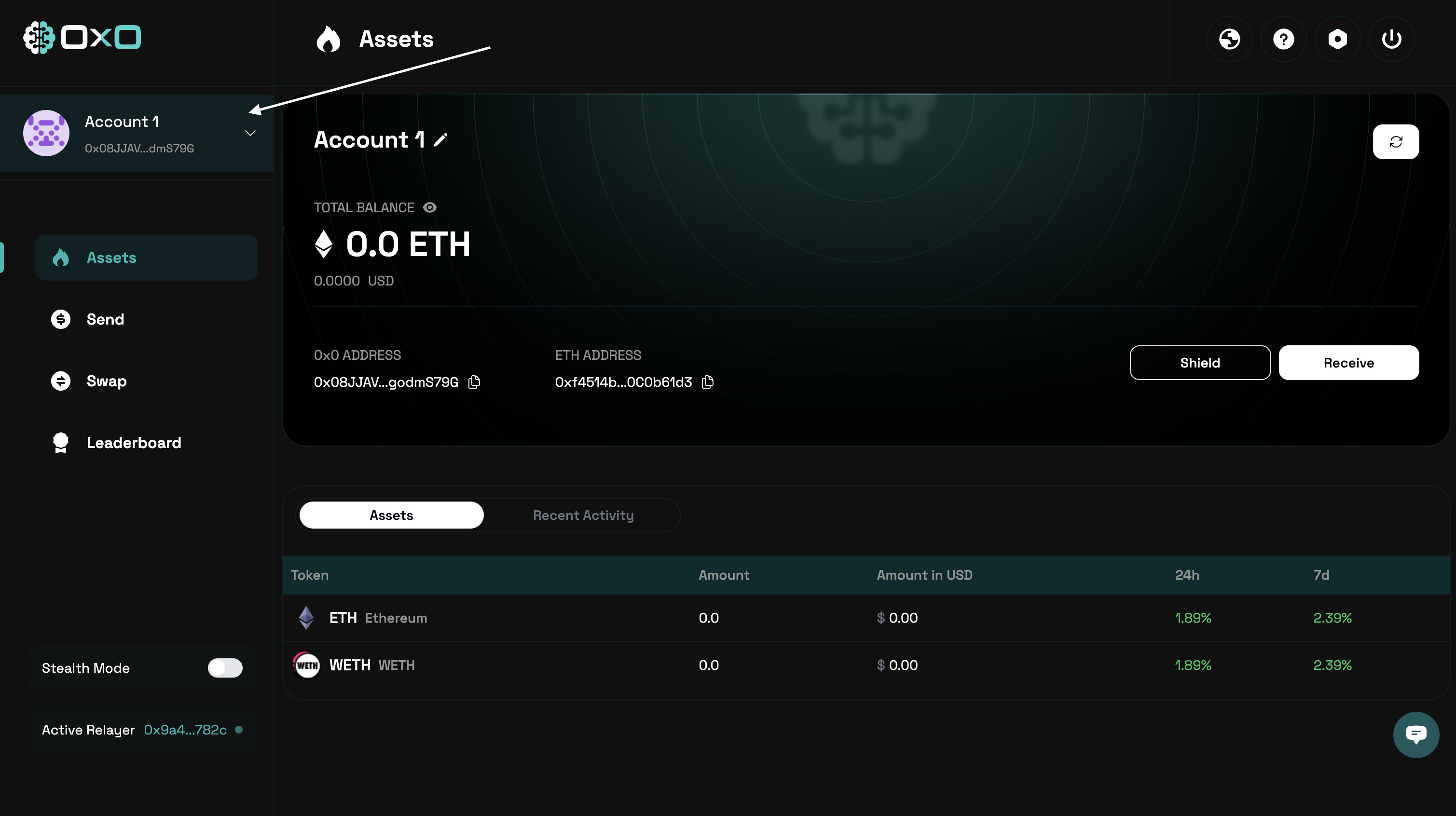
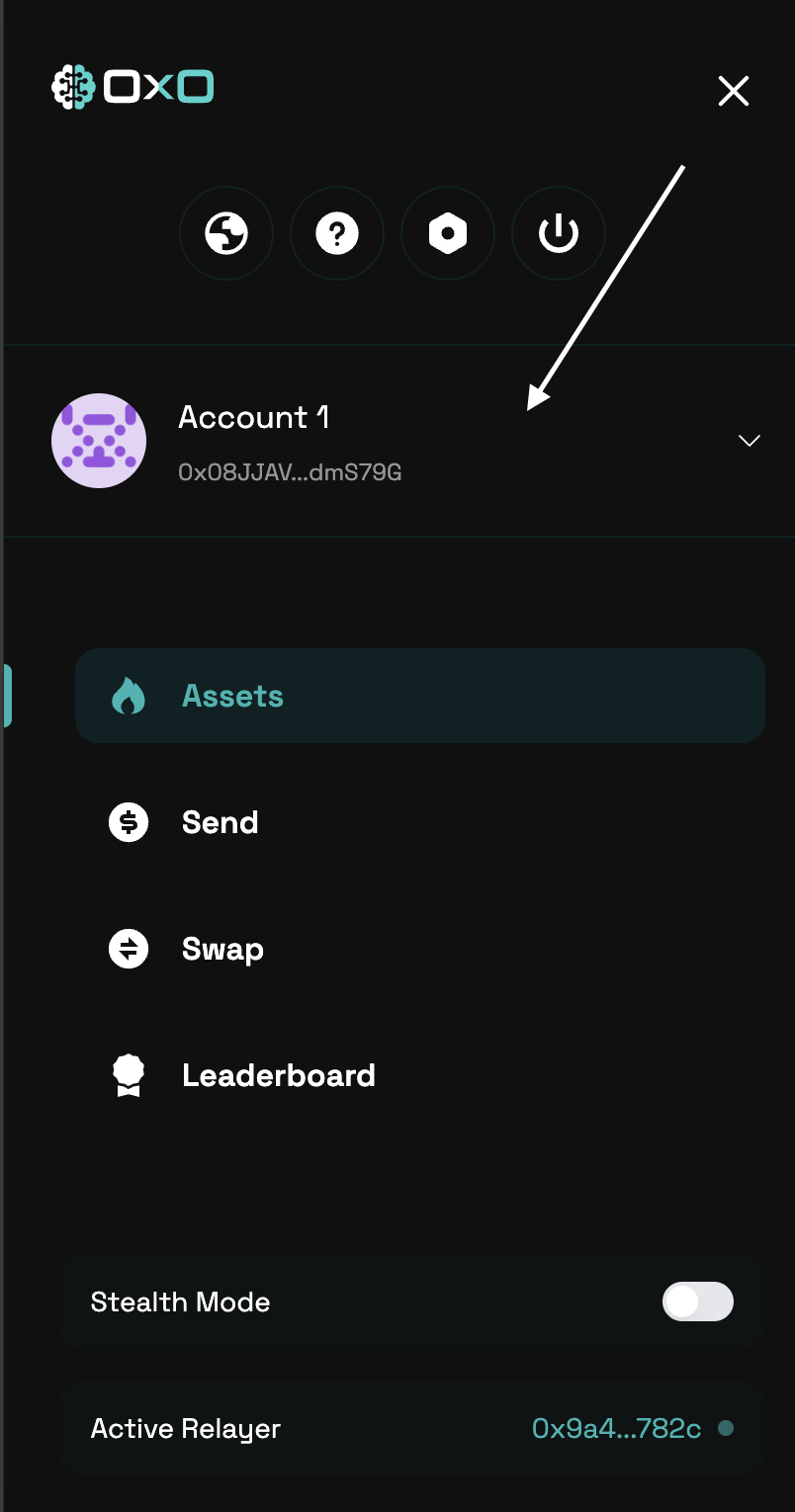
1. Navigate to the [Arcane Wallet](https://arcane.0x0.exchange) and go to the Sidebar and Click on the current wallet
<Tabs>
  <Tab title="Desktop">
    <img className="block" src="https://mintcdn.com/0x0/7e_lgHxFKj1ZerJ_/images/arcane/import/account.png?fit=max&auto=format&n=7e_lgHxFKj1ZerJ_&q=85&s=179cfaa55c189db5d67d44f7c8b54c0d" alt="Import Wallet Example" width="3018" height="1692" data-path="images/arcane/import/account.png" />
  </Tab>

  <Tab title="Mobile">
    <img className="block max-h-[400px]" src="https://mintcdn.com/0x0/7e_lgHxFKj1ZerJ_/images/arcane/import/account-mobile.png?fit=max&auto=format&n=7e_lgHxFKj1ZerJ_&q=85&s=48c518e5114d536015beb700f32900a9" alt="Import Wallet Example" width="804" height="1530" data-path="images/arcane/import/account-mobile.png" />
  </Tab>
</Tabs>

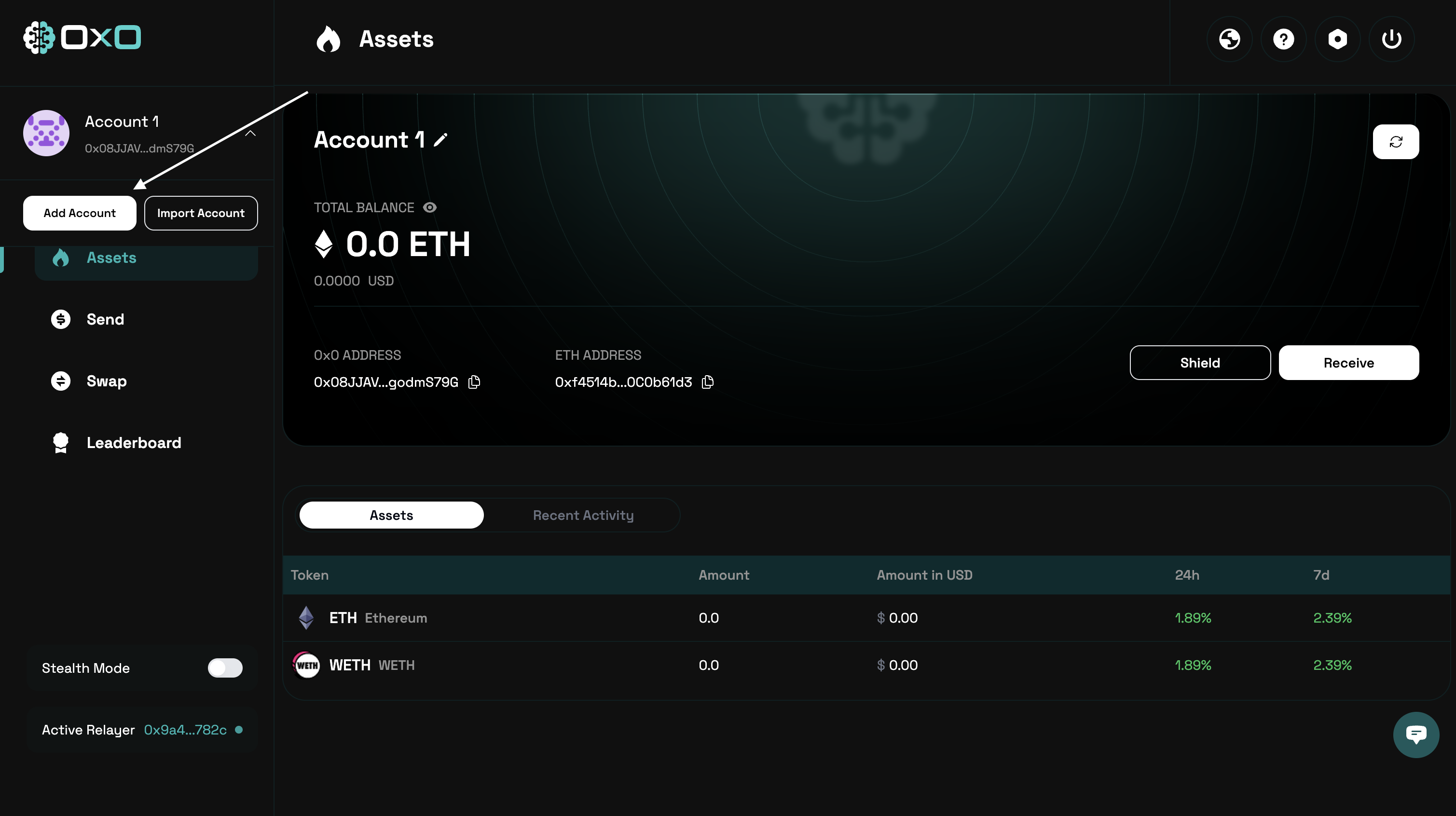
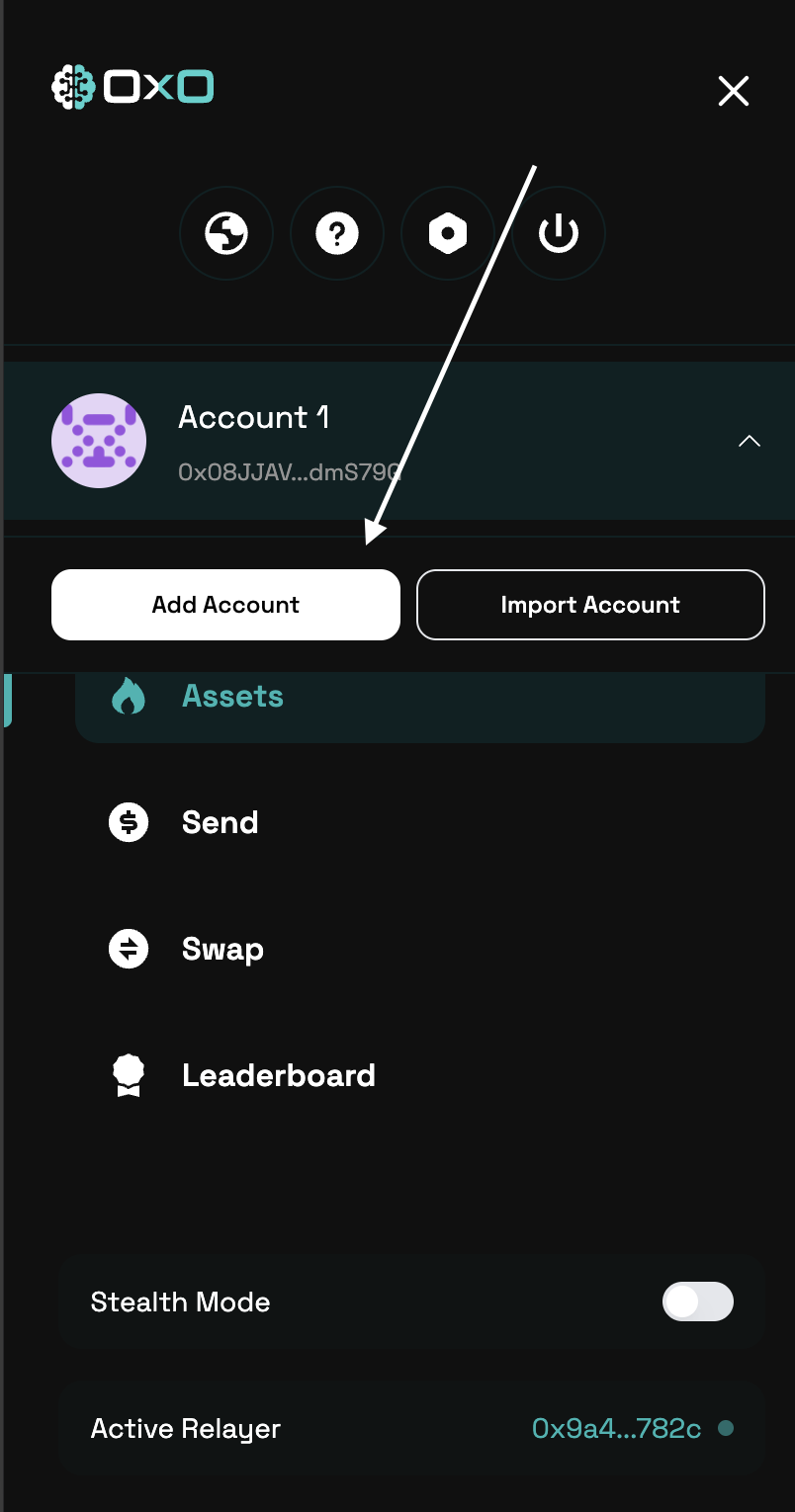
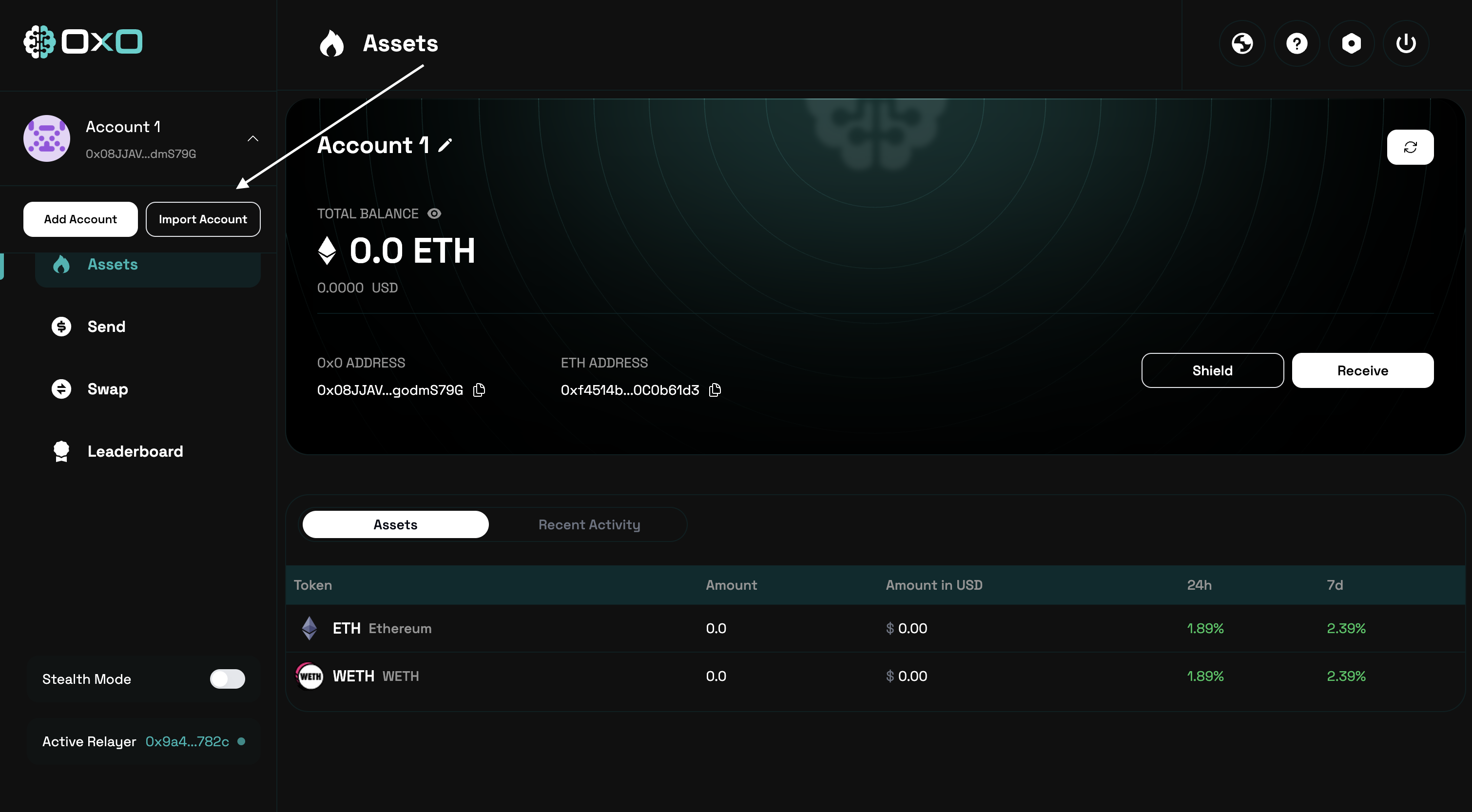
2. Click on the "Add Wallet" button

<Tabs>
  <Tab title="Desktop">
    <img className="block" src="https://mintcdn.com/0x0/7e_lgHxFKj1ZerJ_/images/arcane/import/add.png?fit=max&auto=format&n=7e_lgHxFKj1ZerJ_&q=85&s=66b29d9f4b10d2470cea308893fdaaf8" alt="Import Wallet Example" width="3018" height="1692" data-path="images/arcane/import/add.png" />
  </Tab>

  <Tab title="Mobile">
    <img className="block max-h-[400px]" src="https://mintcdn.com/0x0/7e_lgHxFKj1ZerJ_/images/arcane/import/add-mobile.png?fit=max&auto=format&n=7e_lgHxFKj1ZerJ_&q=85&s=e0ef28235aace8adc8b3629368b3efc9" alt="Import Wallet Example" width="804" height="1530" data-path="images/arcane/import/add-mobile.png" />
  </Tab>
</Tabs>

## Import Wallet

1. Go to the Sidebar and Click on the current wallet

<Tabs>
  <Tab title="Desktop">
    <img className="block" src="https://mintcdn.com/0x0/7e_lgHxFKj1ZerJ_/images/arcane/import/account.png?fit=max&auto=format&n=7e_lgHxFKj1ZerJ_&q=85&s=179cfaa55c189db5d67d44f7c8b54c0d" alt="Import Wallet Example" width="3018" height="1692" data-path="images/arcane/import/account.png" />
  </Tab>

  <Tab title="Mobile">
    <img className="block max-h-[400px]" src="https://mintcdn.com/0x0/7e_lgHxFKj1ZerJ_/images/arcane/import/account-mobile.png?fit=max&auto=format&n=7e_lgHxFKj1ZerJ_&q=85&s=48c518e5114d536015beb700f32900a9" alt="Import Wallet Example" width="804" height="1530" data-path="images/arcane/import/account-mobile.png" />
  </Tab>
</Tabs>

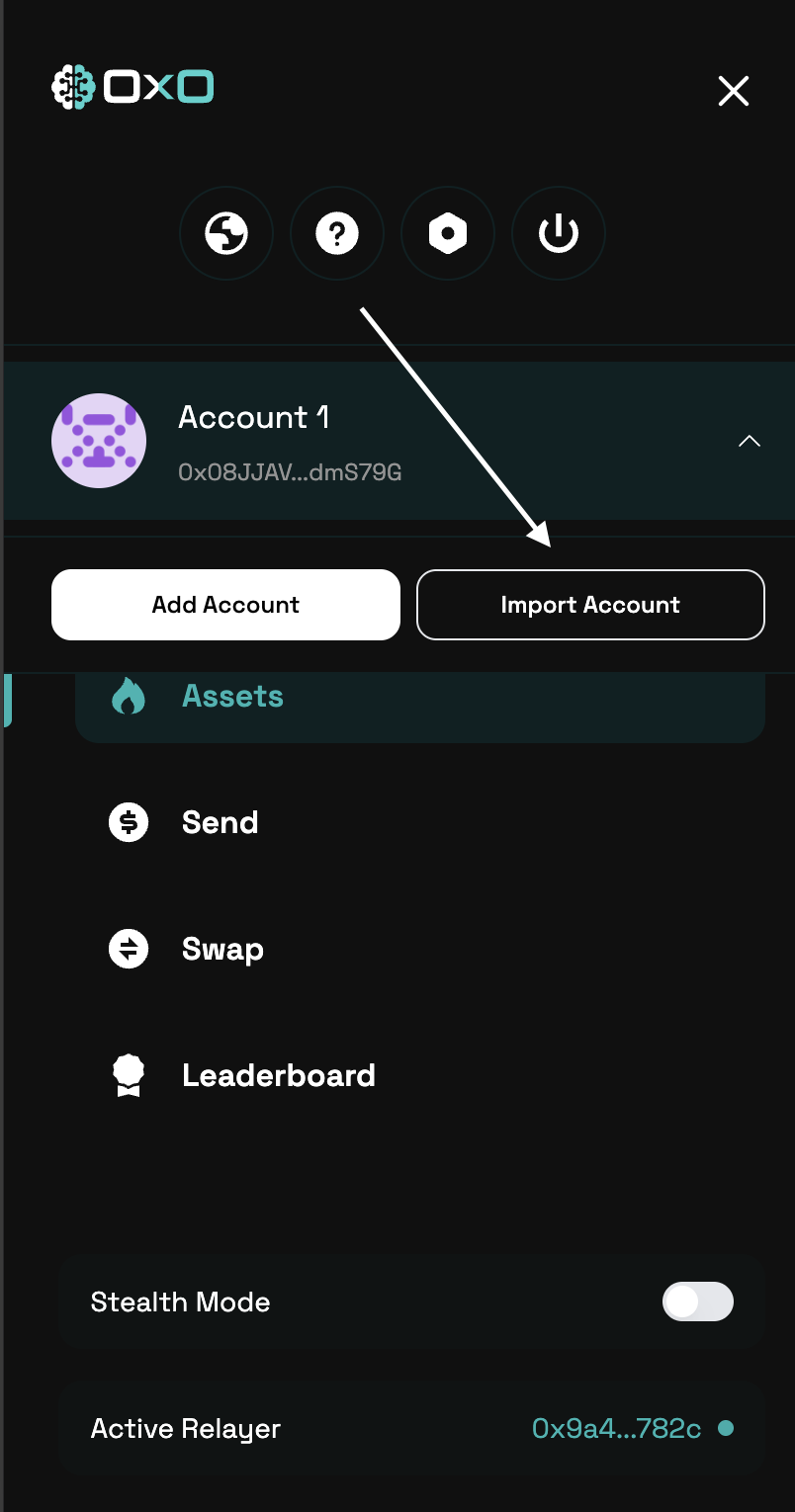
2. Click on the "Import Wallet" button
<Tabs>
  <Tab title="Desktop">
    <img className="block" src="https://mintcdn.com/0x0/7e_lgHxFKj1ZerJ_/images/arcane/import/import.png?fit=max&auto=format&n=7e_lgHxFKj1ZerJ_&q=85&s=c492317569525f38307357eeeb184e24" alt="Import Wallet Example" width="3020" height="1666" data-path="images/arcane/import/import.png" />
  </Tab>

  <Tab title="Mobile">
    <img className="block max-h-[400px]" src="https://mintcdn.com/0x0/7e_lgHxFKj1ZerJ_/images/arcane/import/import-mobile.png?fit=max&auto=format&n=7e_lgHxFKj1ZerJ_&q=85&s=647e0d2462f1f21be4e0a146bccf963b" alt="Import Wallet Example" width="804" height="1530" data-path="images/arcane/import/import-mobile.png" />
  </Tab>
</Tabs>

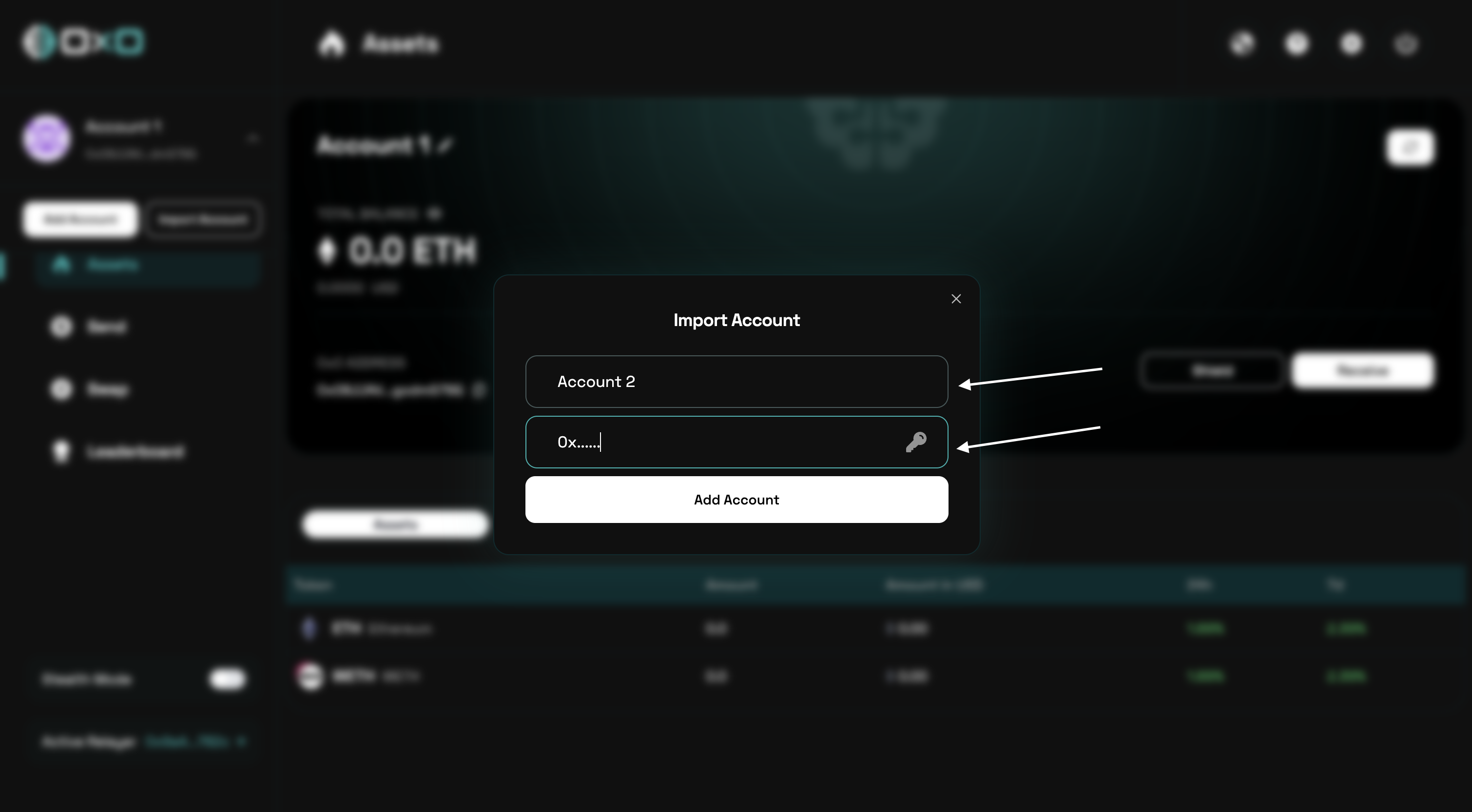
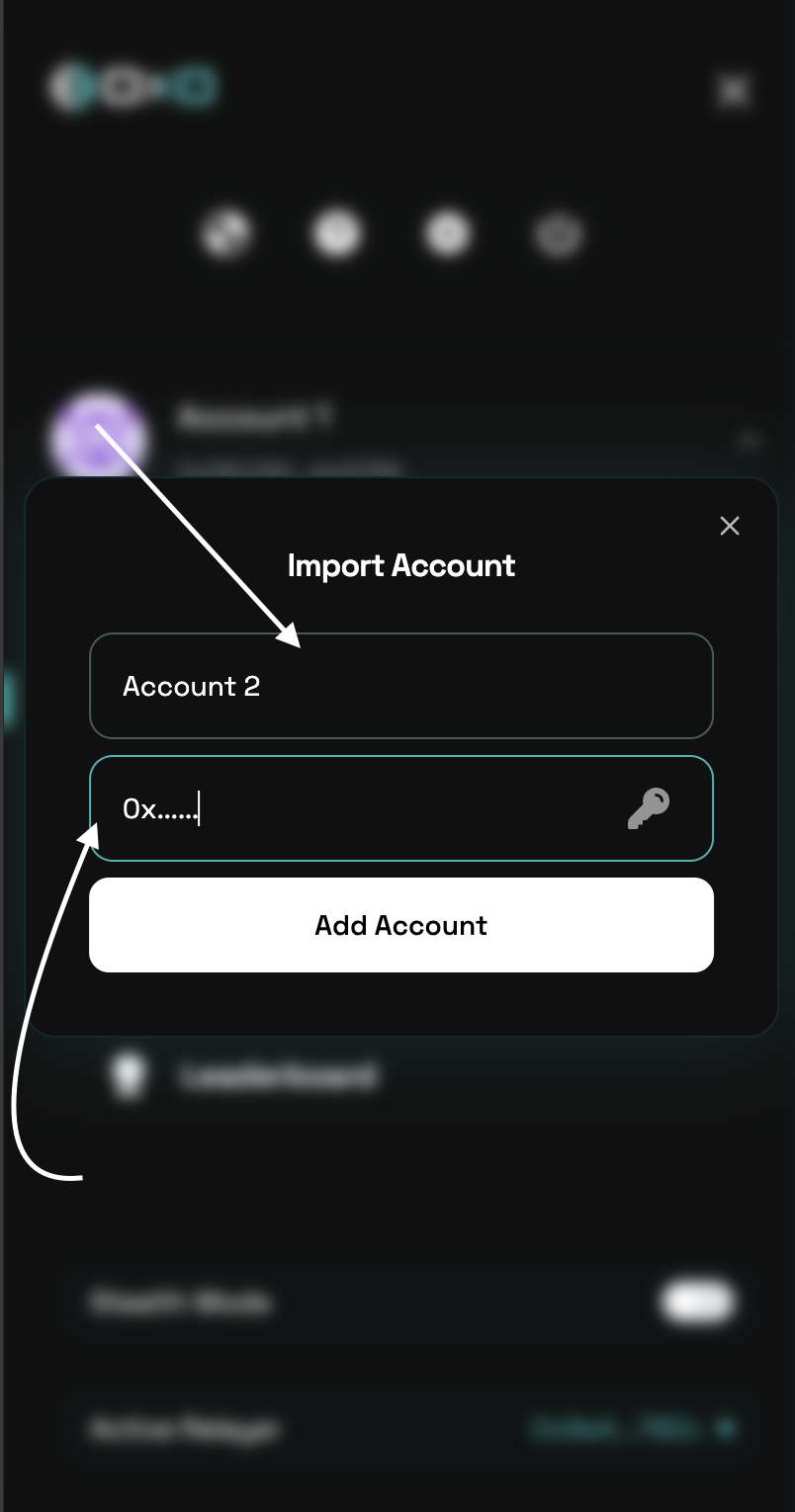
3. Enter the wallet’s private key and assign a name to the wallet. Then, click the ‘Add Account’ button to complete the process.
<Tabs>
  <Tab title="Desktop">
    <img className="block max-h-[400px]" src="https://mintcdn.com/0x0/7e_lgHxFKj1ZerJ_/images/arcane/import/input.png?fit=max&auto=format&n=7e_lgHxFKj1ZerJ_&q=85&s=9aea3abcca0fcd0ba24bd93f363a2591" alt="Import Wallet Example" width="3020" height="1666" data-path="images/arcane/import/input.png" />
  </Tab>

  <Tab title="Mobile">
    <img className="block max-h-[400px]" src="https://mintcdn.com/0x0/7e_lgHxFKj1ZerJ_/images/arcane/import/input-mobile.png?fit=max&auto=format&n=7e_lgHxFKj1ZerJ_&q=85&s=0f7daebdbbbfc1dfda330ca1afb8b333" alt="Import Wallet Example" width="804" height="1530" data-path="images/arcane/import/input-mobile.png" />
  </Tab>
</Tabs>