> ## Documentation Index
> Fetch the complete documentation index at: https://docs.0x0.exchange/llms.txt
> Use this file to discover all available pages before exploring further.

# Shield Assets

> Learn how to shield your assets with Arcane Wallet

Only shielded assets can be sent, received, or swapped privately. After setting up your wallet, ensure your public address holds some assets (e.g., ETH and ERC-20 tokens), as the first step is to shield these public assets. This is the only public transaction you’ll need to perform, and it requires a small amount of ETH in your public address to cover the gas fees.

## How to Shield Assets

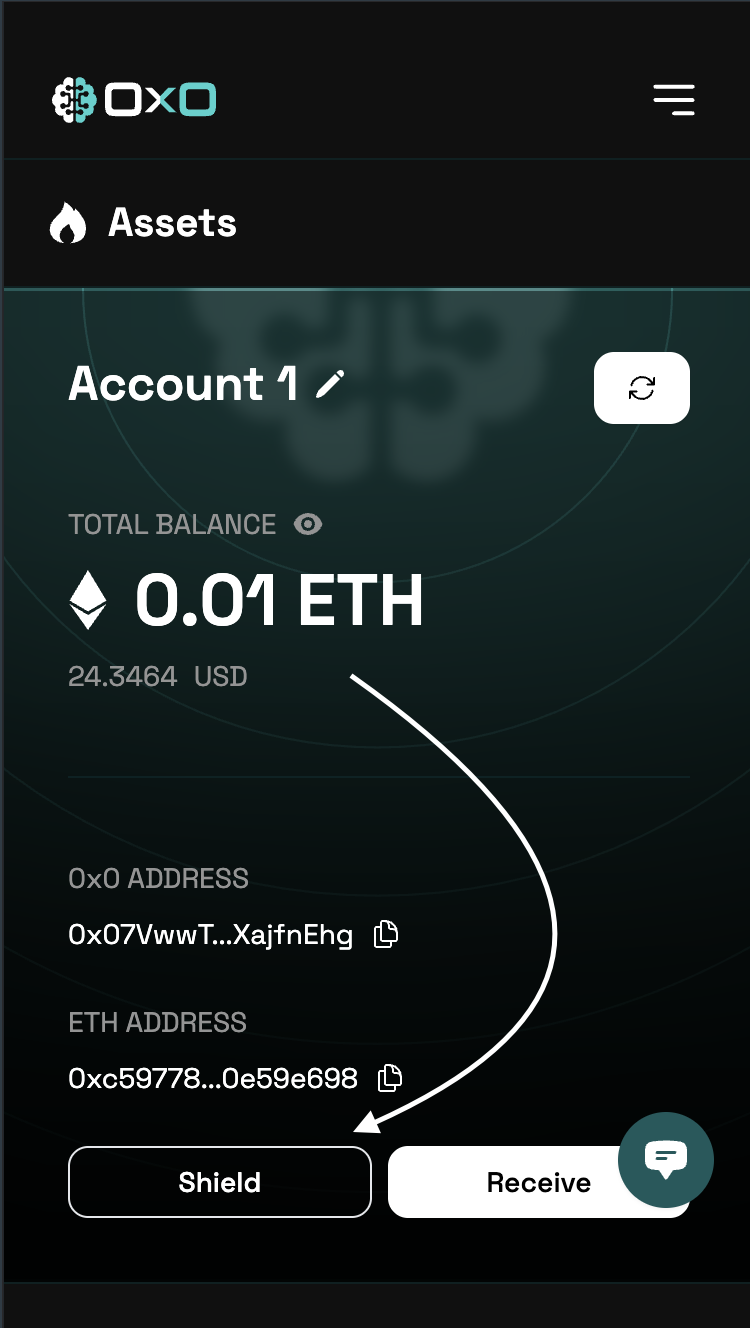
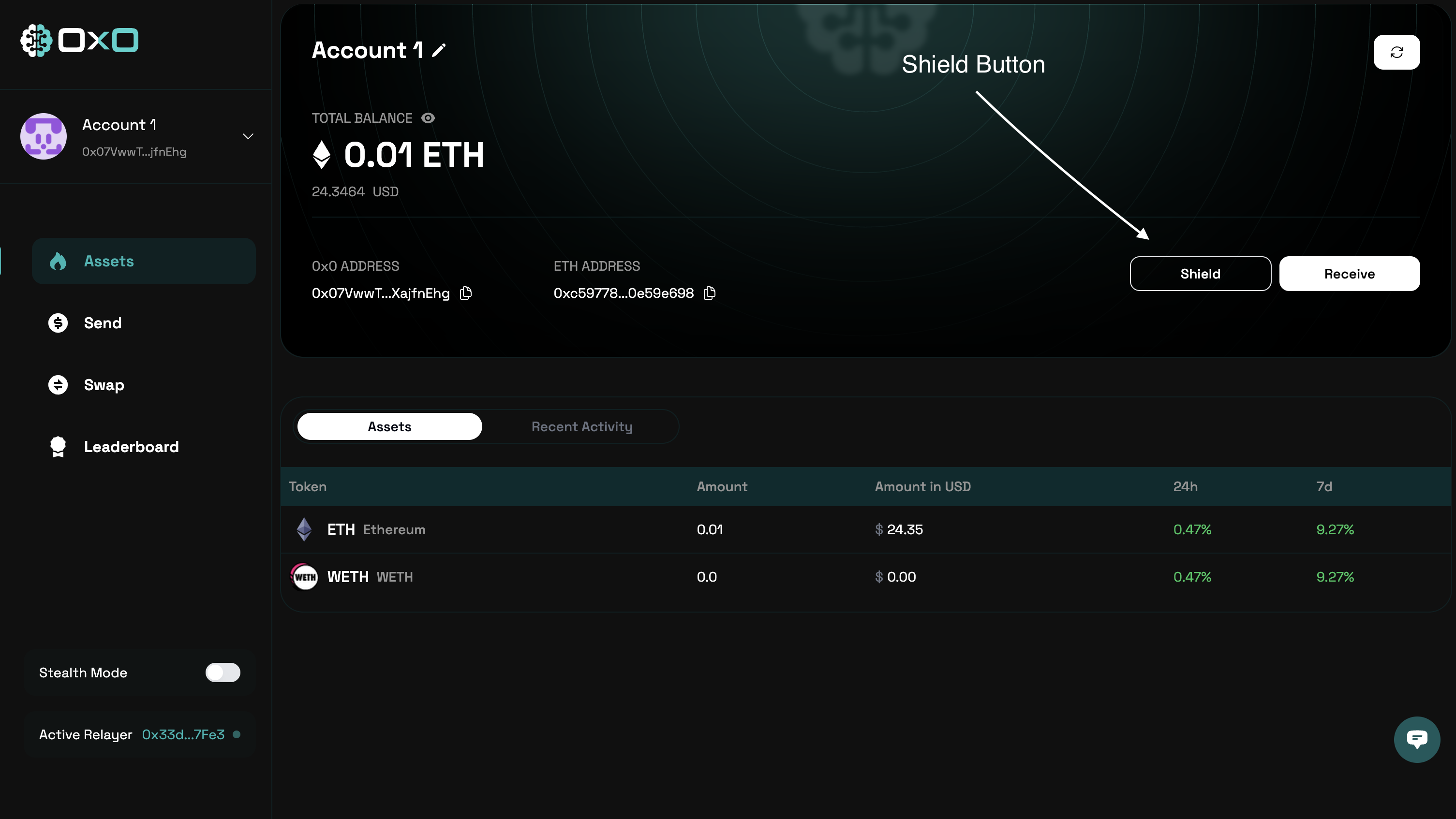
1. Navigate to the [Arcane Wallet](https://arcane.0x0.exchange)  and click the ‘Shield’ button to begin shielding your assets.
<Tabs>
  <Tab title="Desktop">
    <img className="block" src="https://mintcdn.com/0x0/tl6s_Iw1Jdhy2Jw7/images/arcane/shield/shield.png?fit=max&auto=format&n=tl6s_Iw1Jdhy2Jw7&q=85&s=803d8a7eb688d430044b009bdf9e6581" alt="Shield Assets Example" width="3010" height="1694" data-path="images/arcane/shield/shield.png" />
  </Tab>

  <Tab title="Mobile">
    <img className="block max-h-[400px]" src="https://mintcdn.com/0x0/tl6s_Iw1Jdhy2Jw7/images/arcane/shield/shield-mobile.png?fit=max&auto=format&n=tl6s_Iw1Jdhy2Jw7&q=85&s=1429d6a8b5d6b9406273b38c0c550801" alt="Shield Assets Example" width="750" height="1328" data-path="images/arcane/shield/shield-mobile.png" />
  </Tab>
</Tabs>

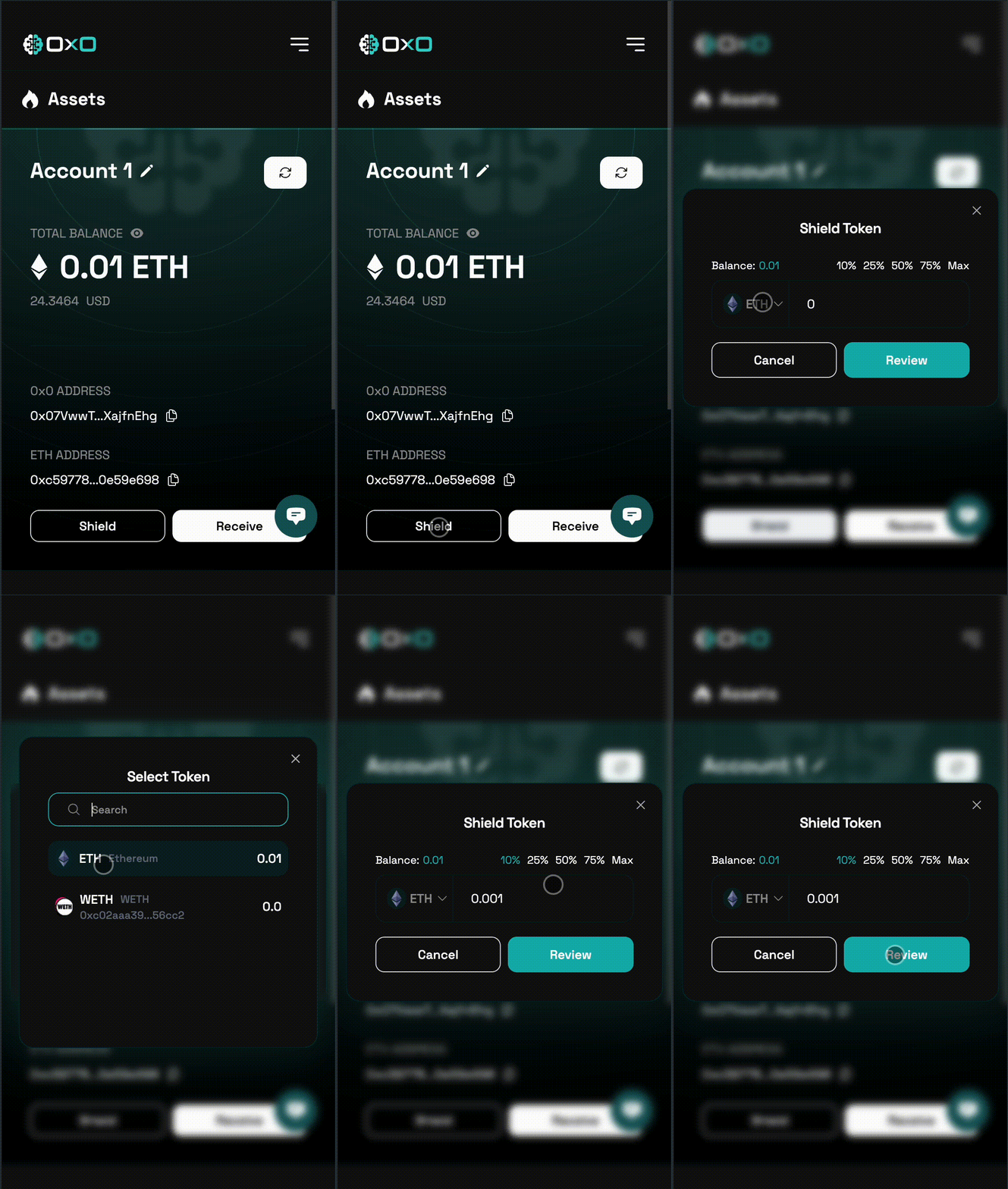
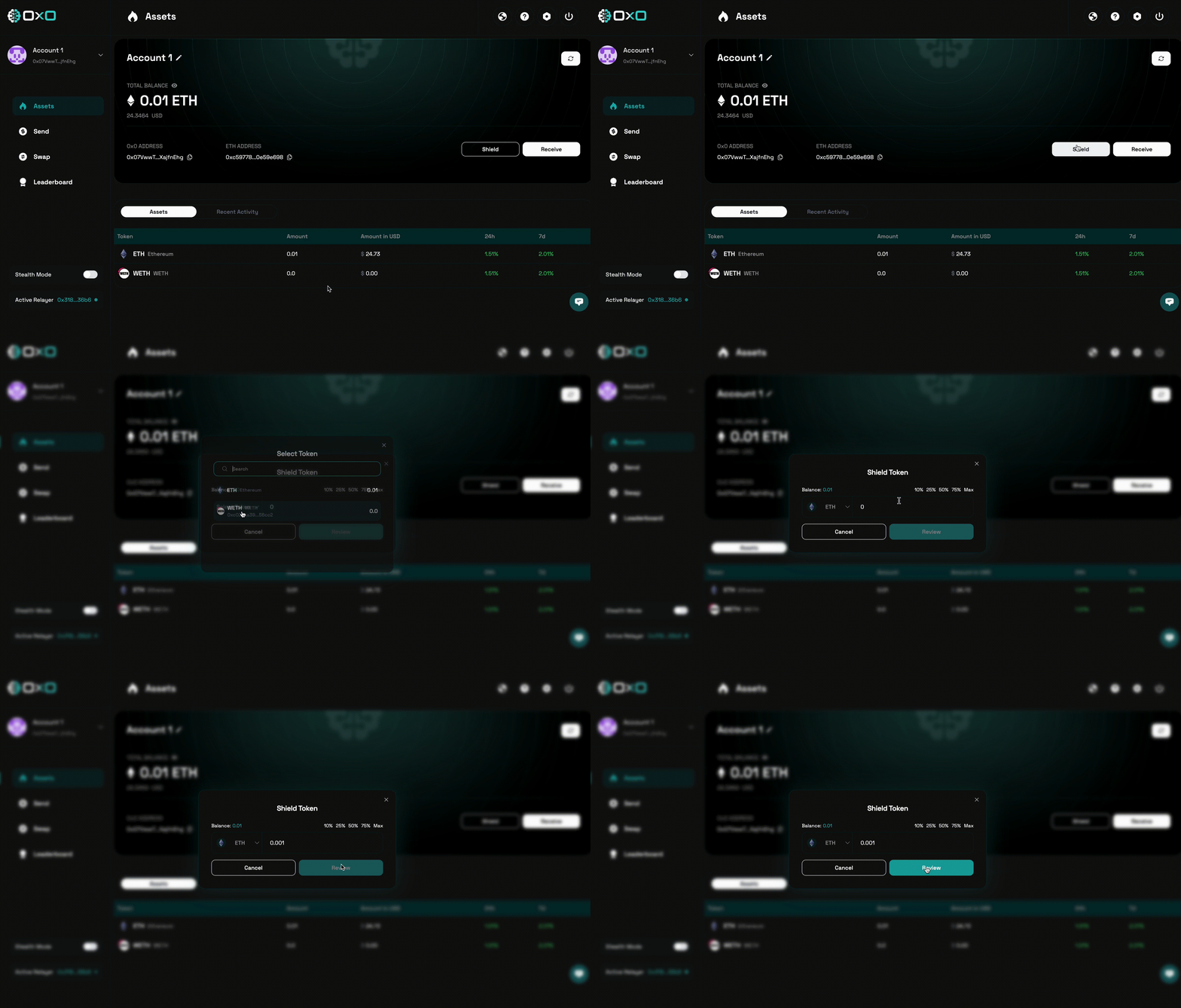
2. Select the assets you wish to shield.
<Tabs>
  <Tab title="Desktop">
    <img className="block max-h-[400px]" src="https://mintcdn.com/0x0/tl6s_Iw1Jdhy2Jw7/images/arcane/shield/select.gif?s=92b373afd51419cb8fb85fd7f265c5e5" alt="Shield Assets Example" width="2984" height="1698" data-path="images/arcane/shield/select.gif" />
  </Tab>

  <Tab title="Mobile">
    <img className="block max-h-[400px]" src="https://mintcdn.com/0x0/tl6s_Iw1Jdhy2Jw7/images/arcane/shield/select-mobile.gif?s=2c0e5c40d9c080fcc085679ae851ef6b" alt="Shield Assets Example" width="756" height="1336" data-path="images/arcane/shield/select-mobile.gif" />
  </Tab>
</Tabs>

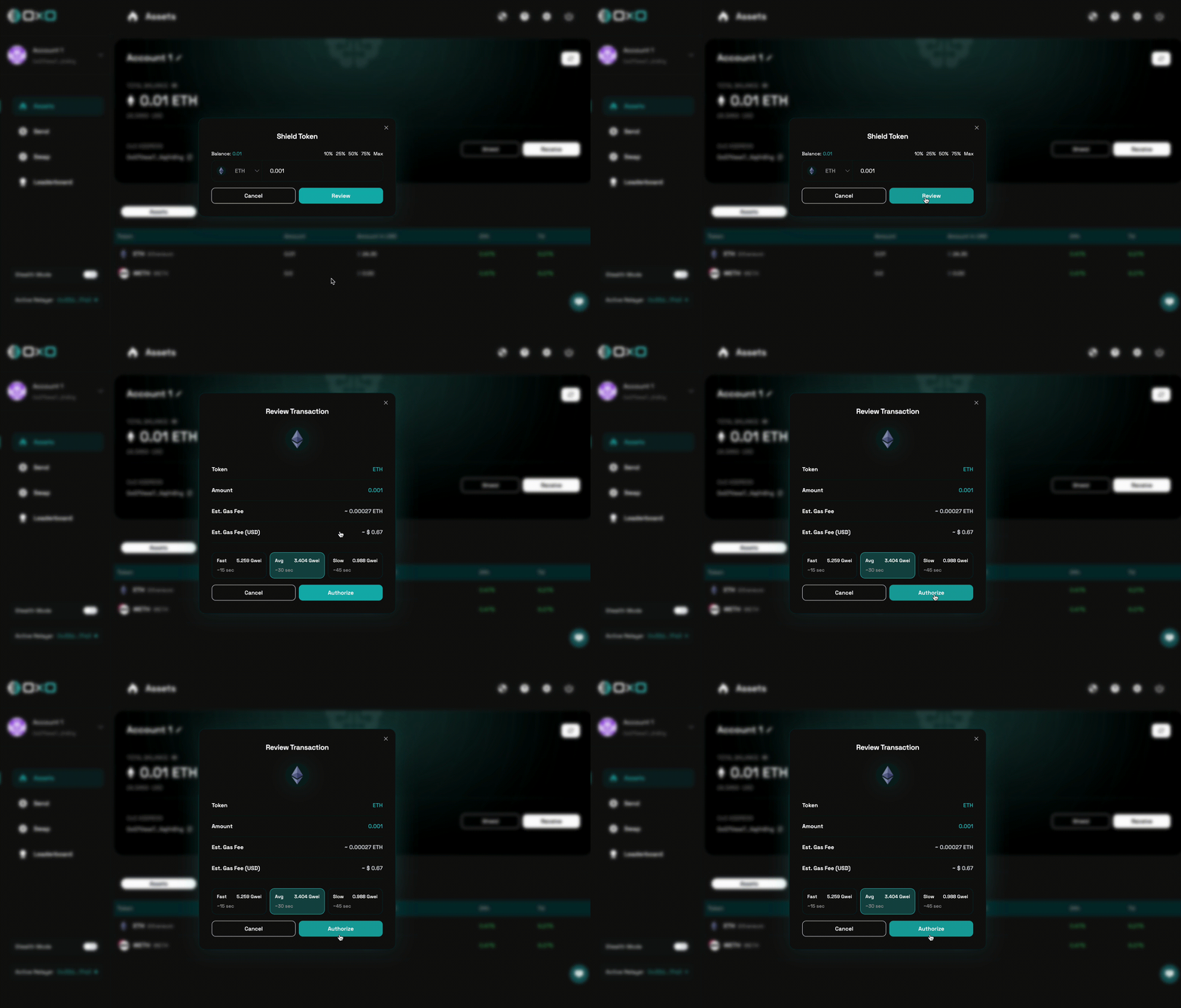
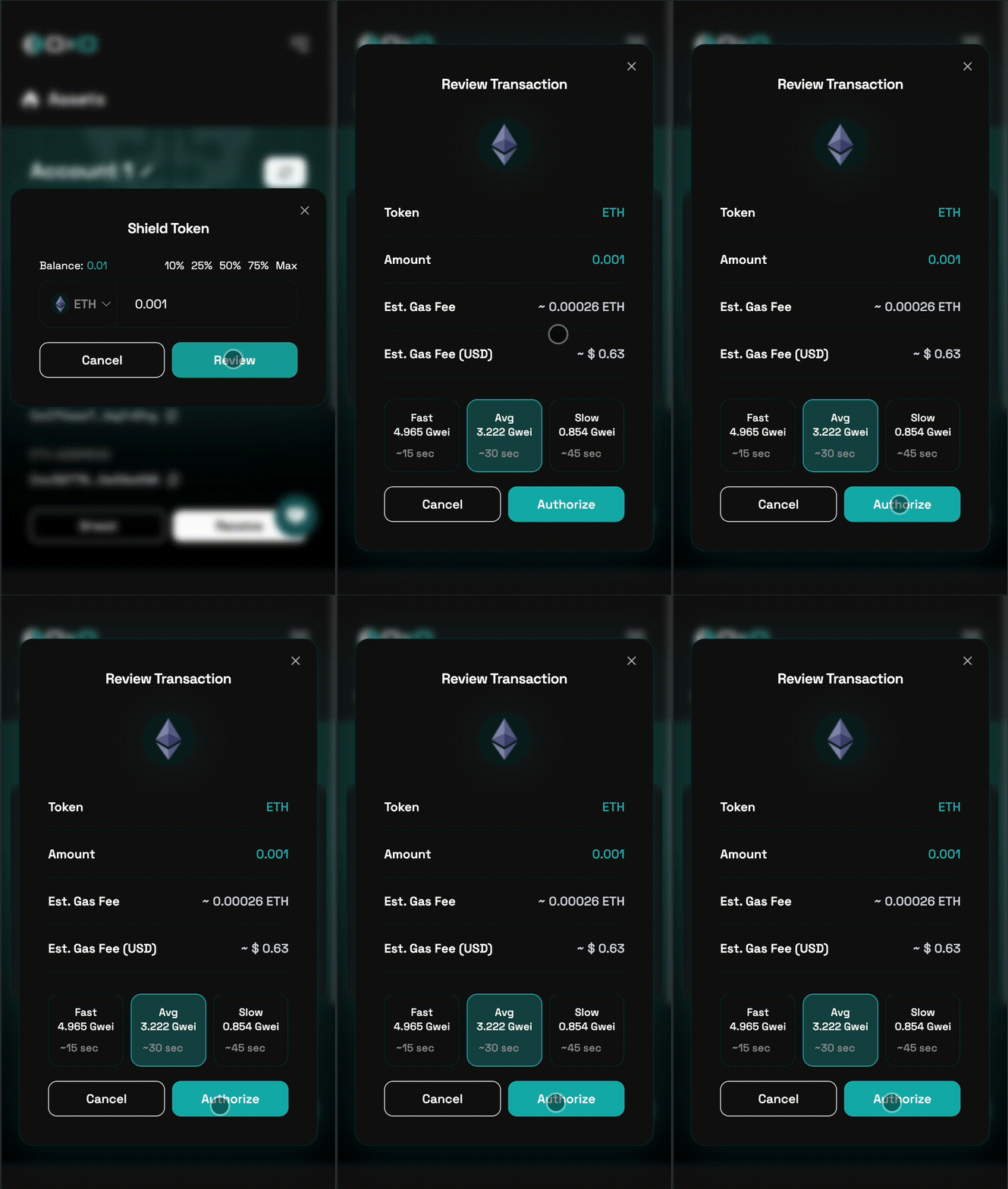
3. Click the ‘Review’ button to confirm the details, then authorize the transaction to proceed.

<Note>If you haven’t approved the transfer of the ERC-20 tokens yet, this button may display Approve instead of Review. Click Approve and confirm the transaction in your wallet to grant permission for the transfer.</Note>

<Tabs>
  <Tab title="Desktop">
    <img className="block max-h-[400px]" src="https://mintcdn.com/0x0/tl6s_Iw1Jdhy2Jw7/images/arcane/shield/review.gif?s=e11e0b8d98002fab1eea853964666a30" alt="Shield Assets Example" width="2984" height="1698" data-path="images/arcane/shield/review.gif" />
  </Tab>

  <Tab title="Mobile">
    <img className="block max-h-[400px]" src="https://mintcdn.com/0x0/tl6s_Iw1Jdhy2Jw7/images/arcane/shield/review-mobile.gif?s=86d5fea46df220e90b3d3bb27e1f8c70" alt="Shield Assets Example" width="756" height="1336" data-path="images/arcane/shield/review-mobile.gif" />
  </Tab>
</Tabs>