> ## Documentation Index
> Fetch the complete documentation index at: https://docs.0x0.exchange/llms.txt
> Use this file to discover all available pages before exploring further.

# Withdraw / Unshield Assets

> Learn how to withdraw / unshield your assets with Arcane Wallet

Withdrawing shielded assets works much like sending shielded assets. The key difference is that you're transferring the assets to a standard Ethereum (public) address.

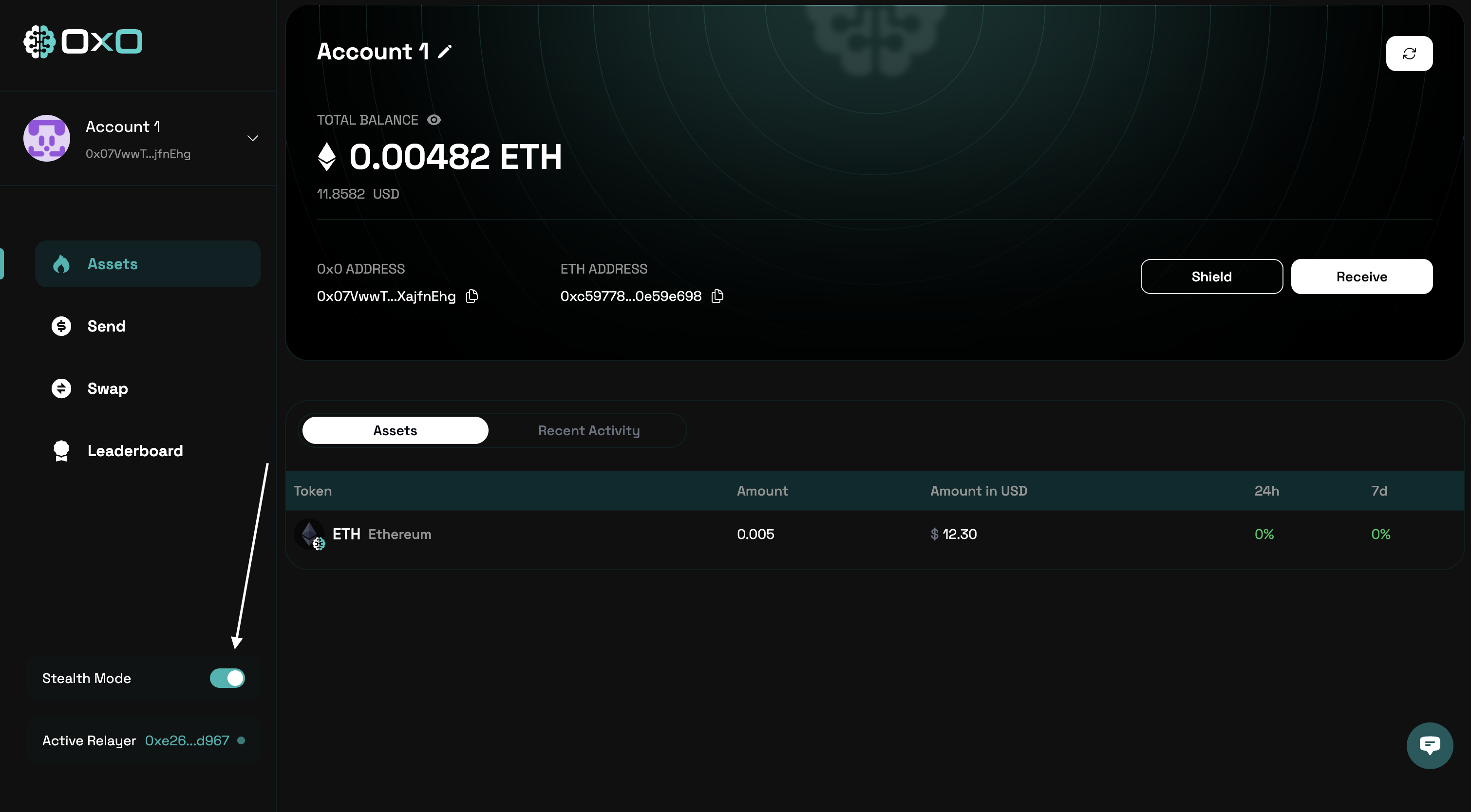
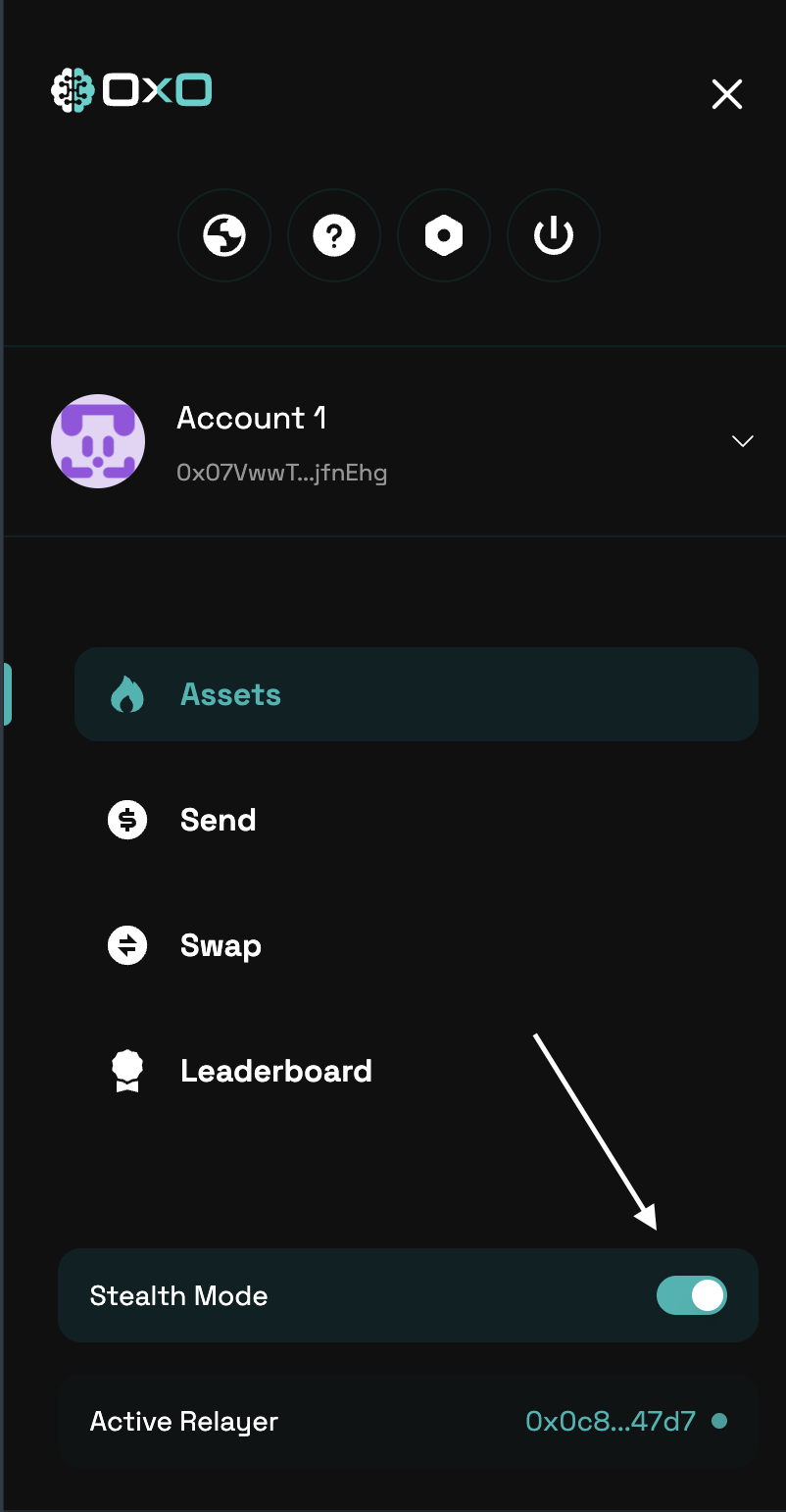
1. Navigate to the [Arcane Wallet](https://arcane.0x0.exchange) and ensure that [Stealth Mode](/arcane/overview#stealth-mode) is turned on to enable private transactions.
<Tabs>
  <Tab title="Desktop">
    <img className="block" src="https://mintcdn.com/0x0/7e_lgHxFKj1ZerJ_/images/arcane/send-private/stealth.png?fit=max&auto=format&n=7e_lgHxFKj1ZerJ_&q=85&s=fffc657493344830226e6cc574907964" alt="Send Assets Example" width="3020" height="1668" data-path="images/arcane/send-private/stealth.png" />
  </Tab>

  <Tab title="Mobile">
    <img className="block max-h-[400px]" src="https://mintcdn.com/0x0/7e_lgHxFKj1ZerJ_/images/arcane/send-private/stealth-mobile.png?fit=max&auto=format&n=7e_lgHxFKj1ZerJ_&q=85&s=57c9ffe4f4f482265116bd0daa05350a" alt="Send Assets Example" width="802" height="1542" data-path="images/arcane/send-private/stealth-mobile.png" />
  </Tab>
</Tabs>

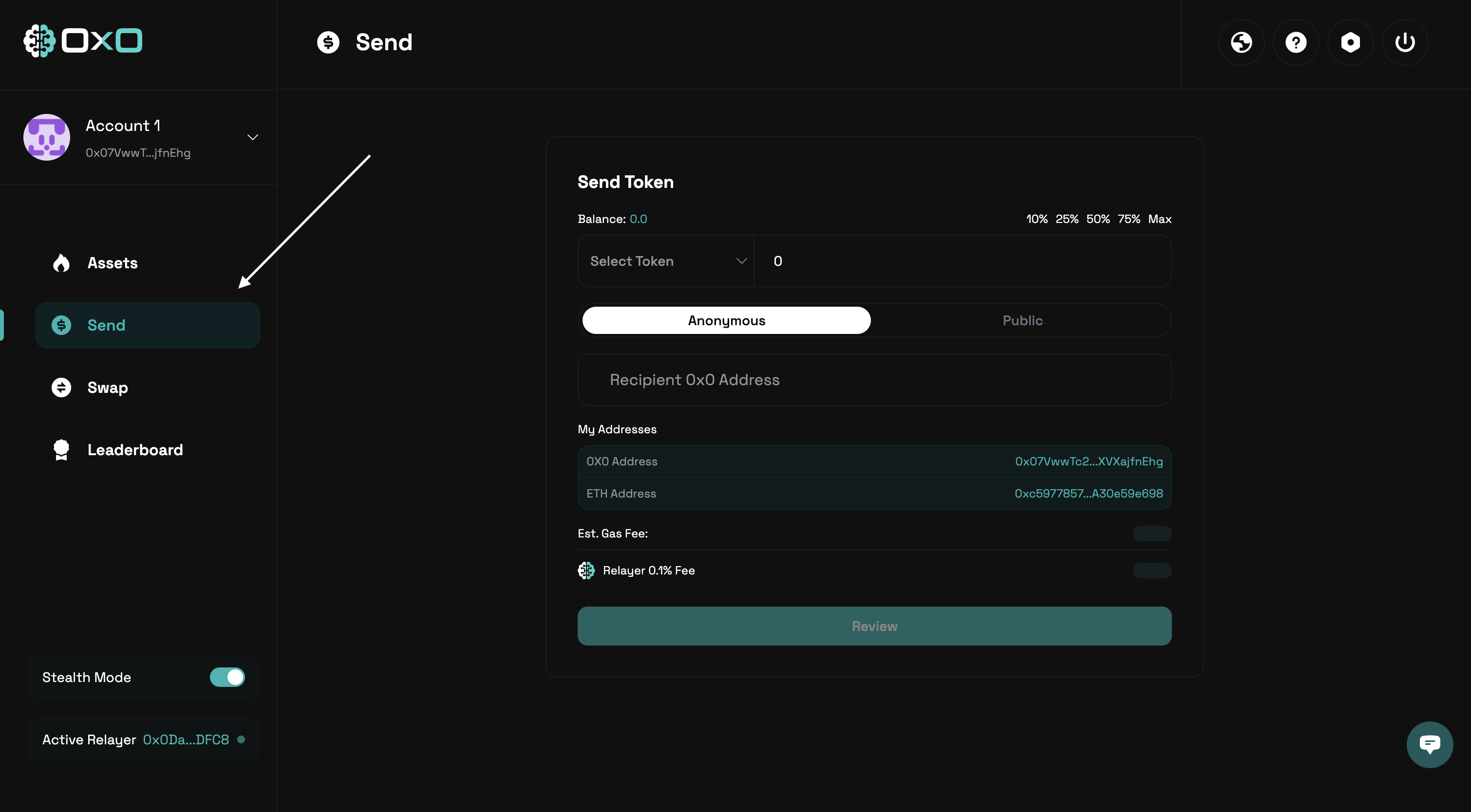
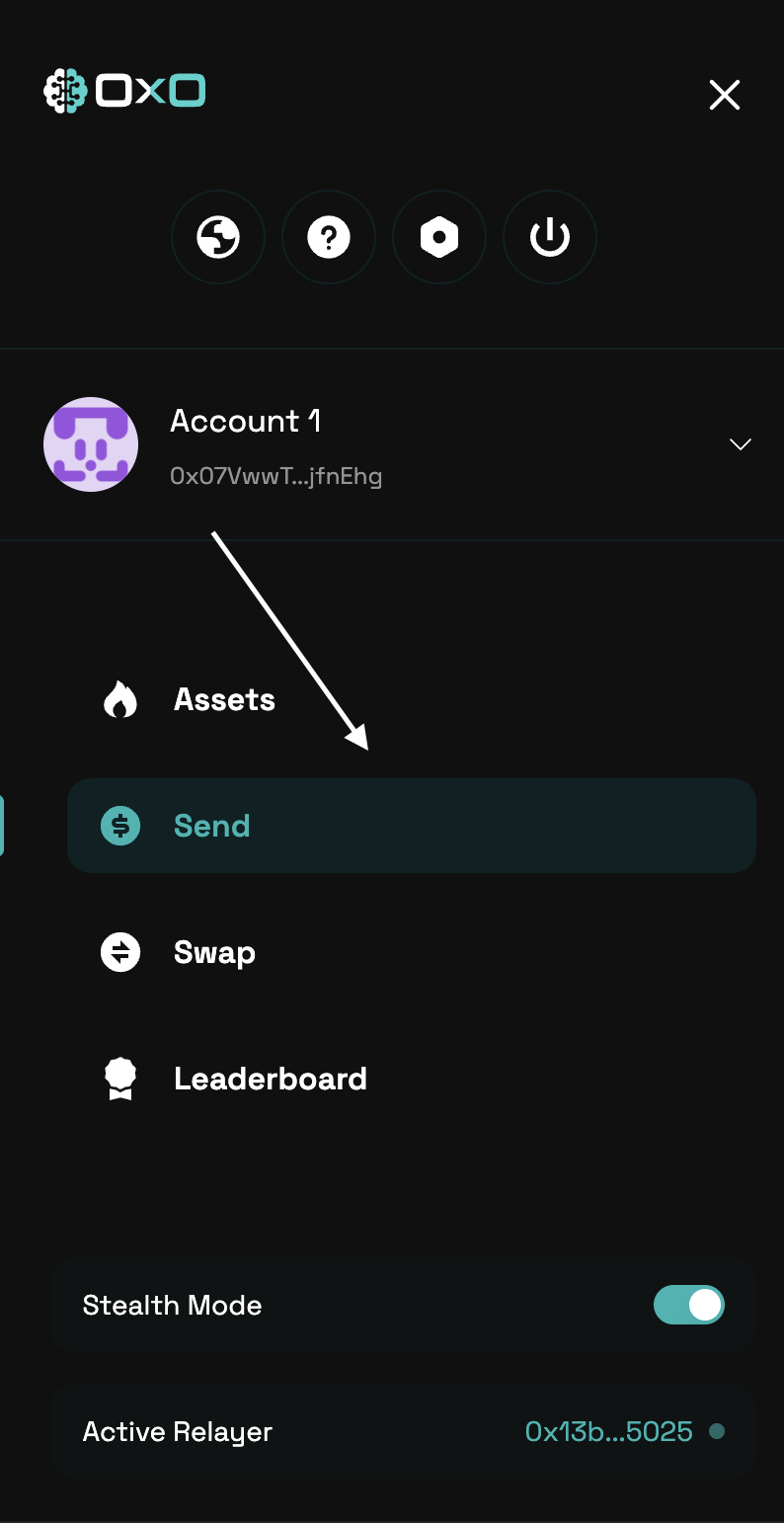
2. Navigate to the "Send" tab

<Tabs>
  <Tab title="Desktop">
    <img className="block" src="https://mintcdn.com/0x0/7e_lgHxFKj1ZerJ_/images/arcane/send-private/send-tab.png?fit=max&auto=format&n=7e_lgHxFKj1ZerJ_&q=85&s=69e8eeb555bd78050ce850941a0565fe" alt="Send Assets Example" width="3020" height="1668" data-path="images/arcane/send-private/send-tab.png" />
  </Tab>

  <Tab title="Mobile">
    <img className="block max-h-[400px]" src="https://mintcdn.com/0x0/7e_lgHxFKj1ZerJ_/images/arcane/send-private/send-tab-mobile.png?fit=max&auto=format&n=7e_lgHxFKj1ZerJ_&q=85&s=dfef106d54bf3b19651f86e931b8a96b" alt="Send Assets Example" width="794" height="1542" data-path="images/arcane/send-private/send-tab-mobile.png" />
  </Tab>
</Tabs>

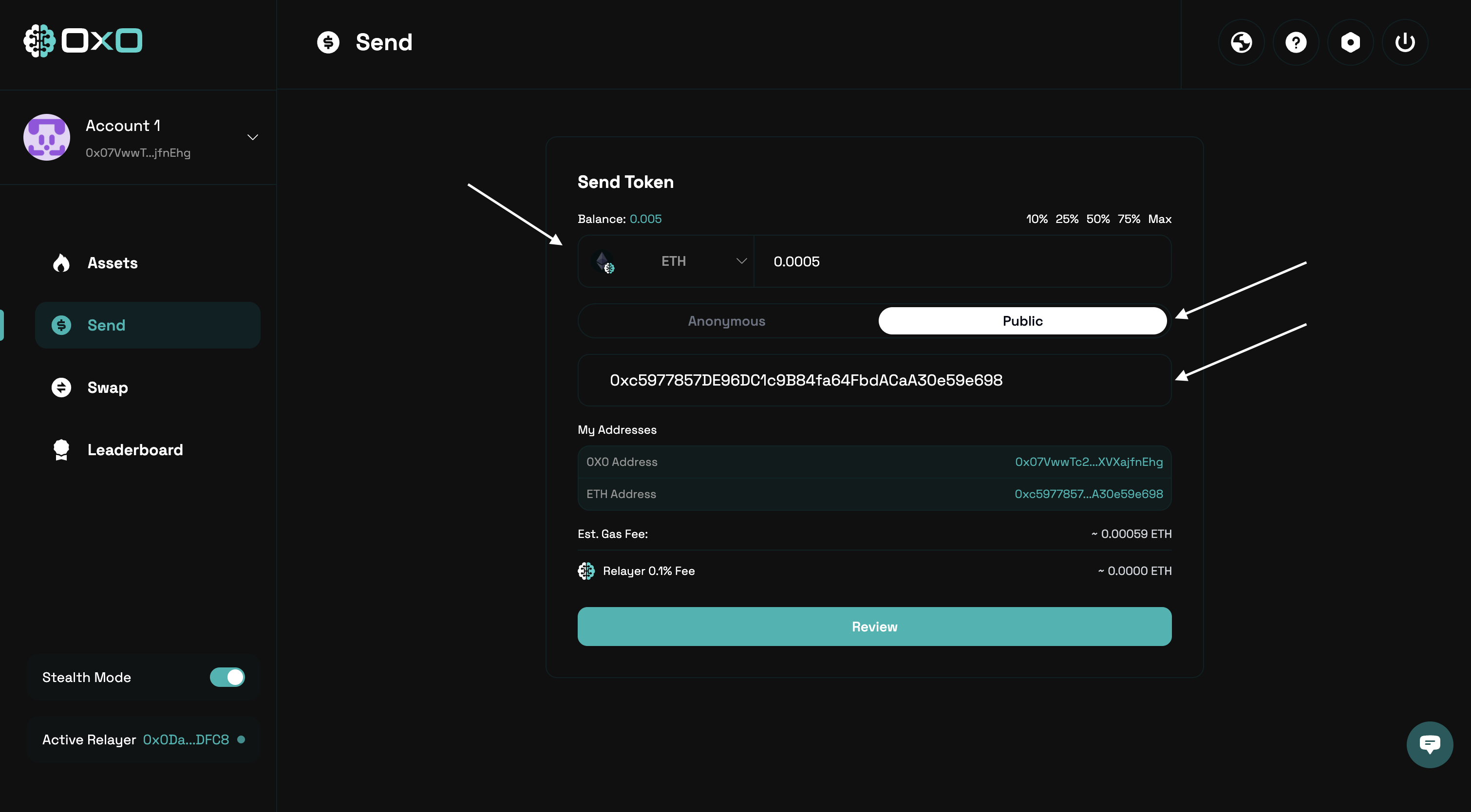
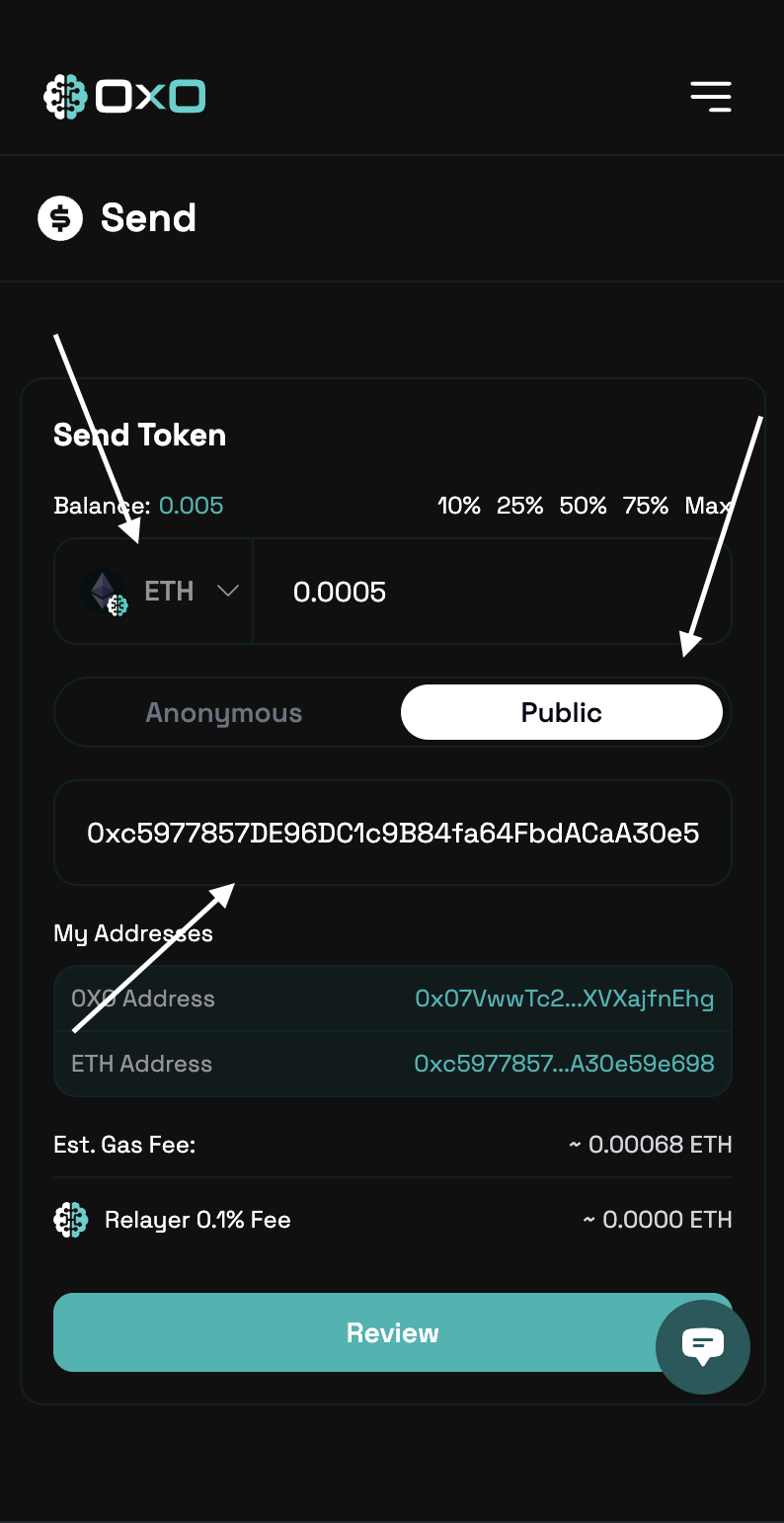
3. Select the token you want to send, switch to the ‘Public’ tab, then enter the amount and the recipient’s **Ethereum address**.
<Tabs>
  <Tab title="Desktop">
    <img className="block" src="https://mintcdn.com/0x0/7e_lgHxFKj1ZerJ_/images/arcane/send-private/inputs-public.png?fit=max&auto=format&n=7e_lgHxFKj1ZerJ_&q=85&s=7d2bf02325838ad0fb54e21aa72ea772" alt="Send Assets Example" width="3020" height="1668" data-path="images/arcane/send-private/inputs-public.png" />
  </Tab>

  <Tab title="Mobile">
    <img className="block max-h-[400px]" src="https://mintcdn.com/0x0/7e_lgHxFKj1ZerJ_/images/arcane/send-private/inputs-public-mobile.png?fit=max&auto=format&n=7e_lgHxFKj1ZerJ_&q=85&s=690d320f79b21675f0ca2189c0fc0ac5" alt="Send Assets Example" width="794" height="1542" data-path="images/arcane/send-private/inputs-public-mobile.png" />
  </Tab>
</Tabs>

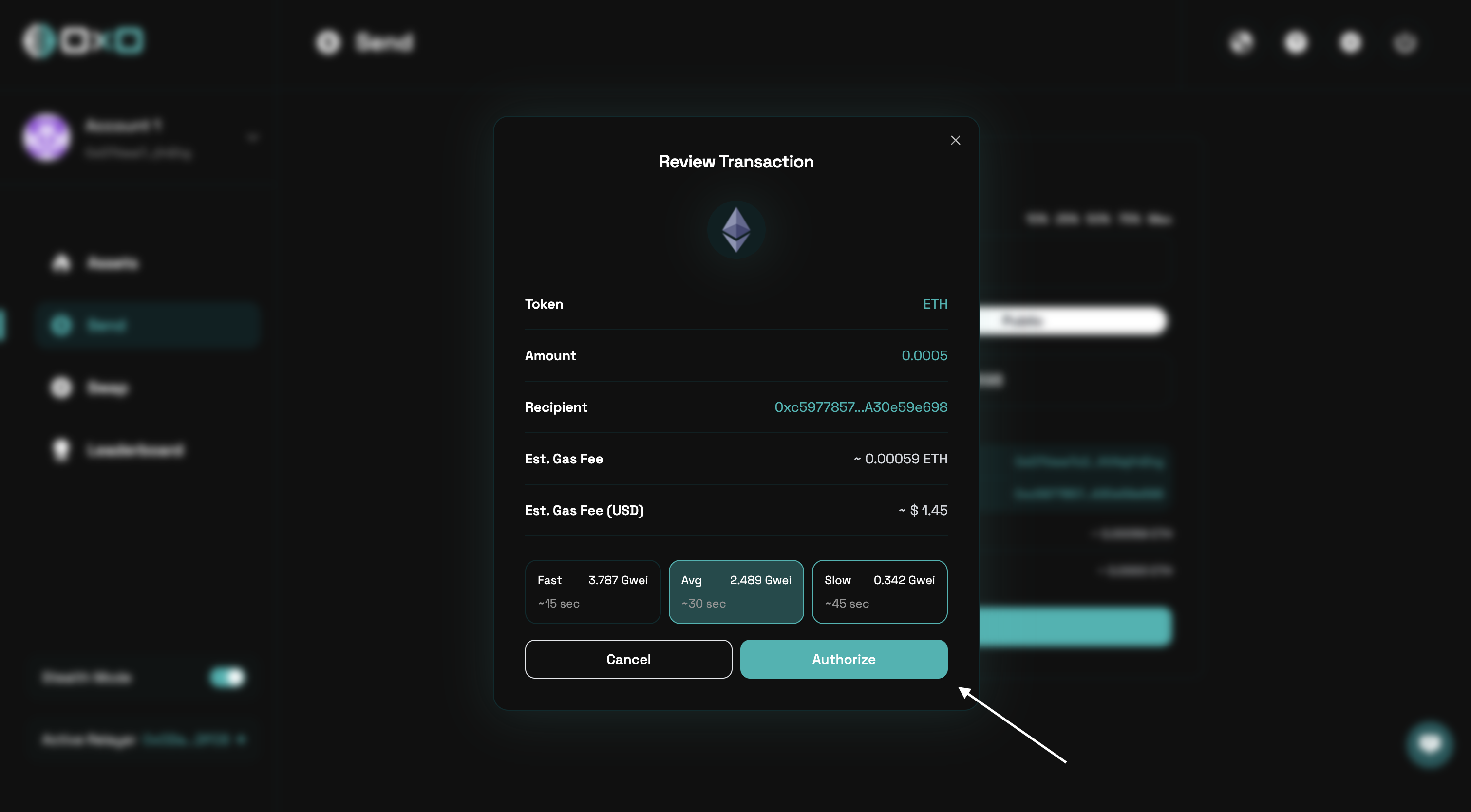
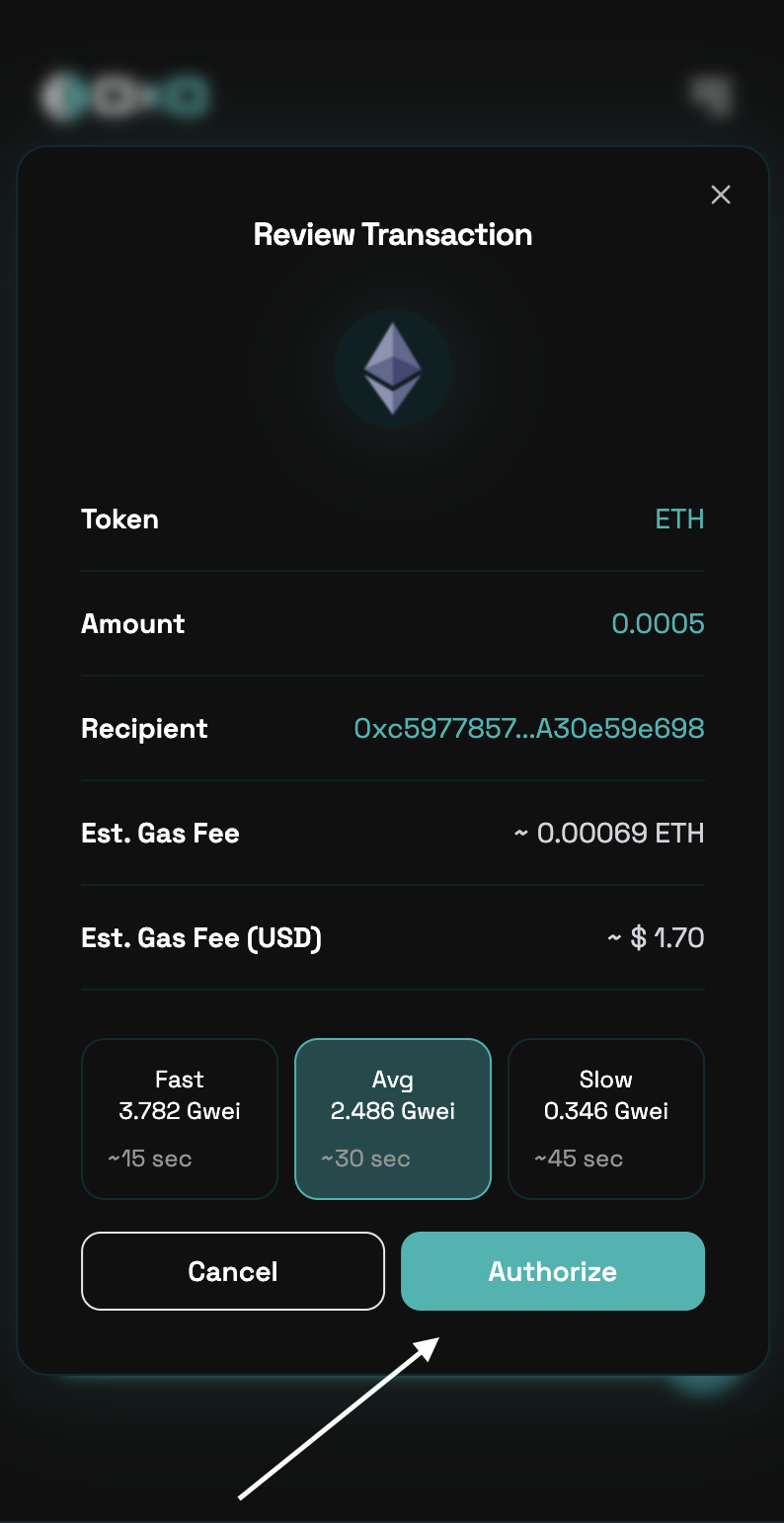
4. Review all transaction details carefully, then authorize the transaction to complete the transfer.
<Tabs>
  <Tab title="Desktop">
    <img className="block" src="https://mintcdn.com/0x0/7e_lgHxFKj1ZerJ_/images/arcane/send-private/authorize-public.png?fit=max&auto=format&n=7e_lgHxFKj1ZerJ_&q=85&s=81c7c0a7e4802b71016fb9c771e394bd" alt="Send Assets Example" width="3020" height="1668" data-path="images/arcane/send-private/authorize-public.png" />
  </Tab>

  <Tab title="Mobile">
    <img className="block max-h-[400px]" src="https://mintcdn.com/0x0/7e_lgHxFKj1ZerJ_/images/arcane/send-private/authorize-public-mobile.png?fit=max&auto=format&n=7e_lgHxFKj1ZerJ_&q=85&s=351a941a4d63e0001fa542e10eabcbed" alt="Send Assets Example" width="794" height="1542" data-path="images/arcane/send-private/authorize-public-mobile.png" />
  </Tab>
</Tabs>