> ## Documentation Index
> Fetch the complete documentation index at: https://docs.0x0.exchange/llms.txt
> Use this file to discover all available pages before exploring further.
# Funding your Account
Follow this step-by-step guide to deposit funds into your private Spectre trading account.
## Steps
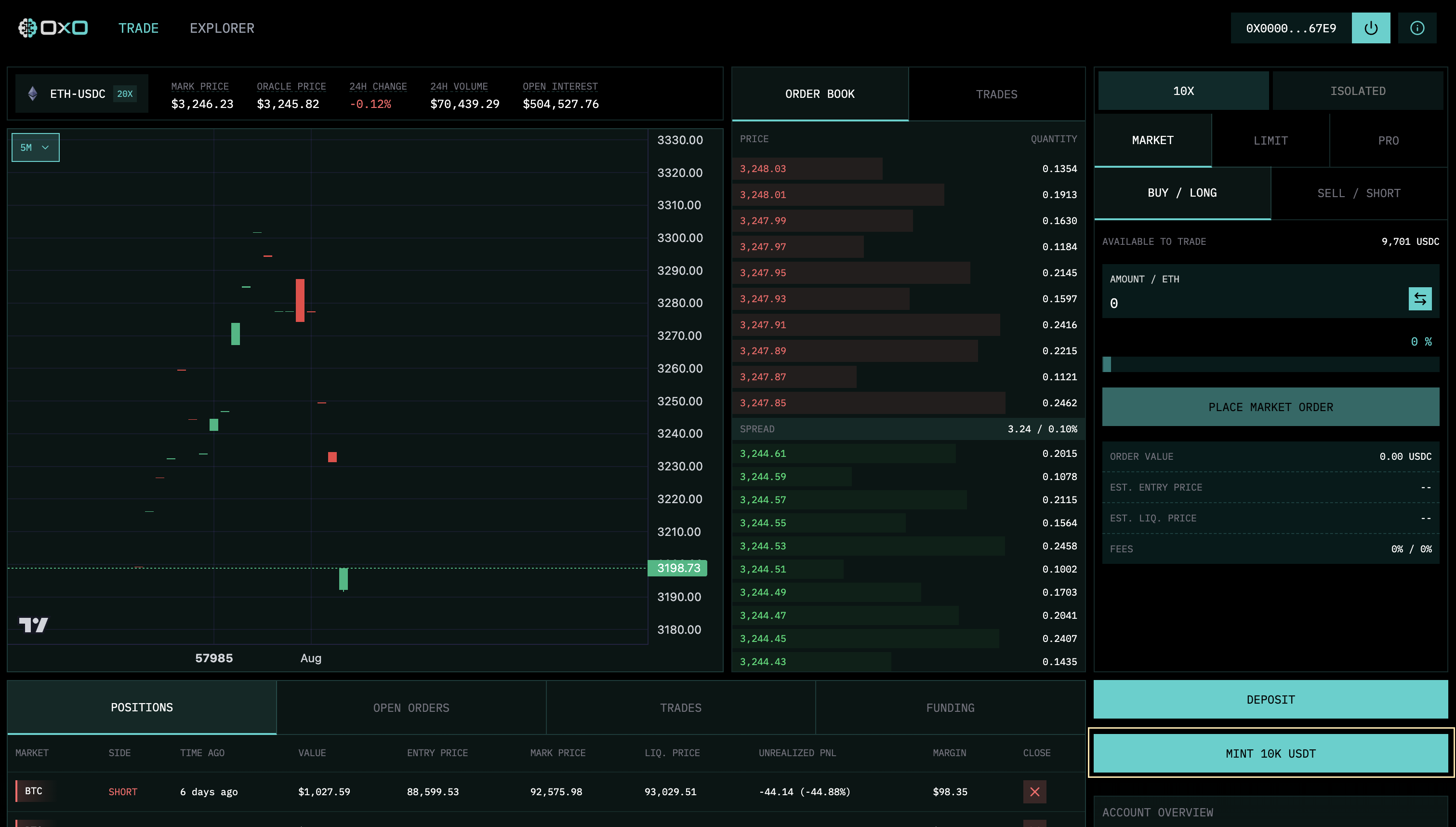
1. **Mint Testnet USDC**: First, ensure you have USDC for testing. Click "Mint USDC".
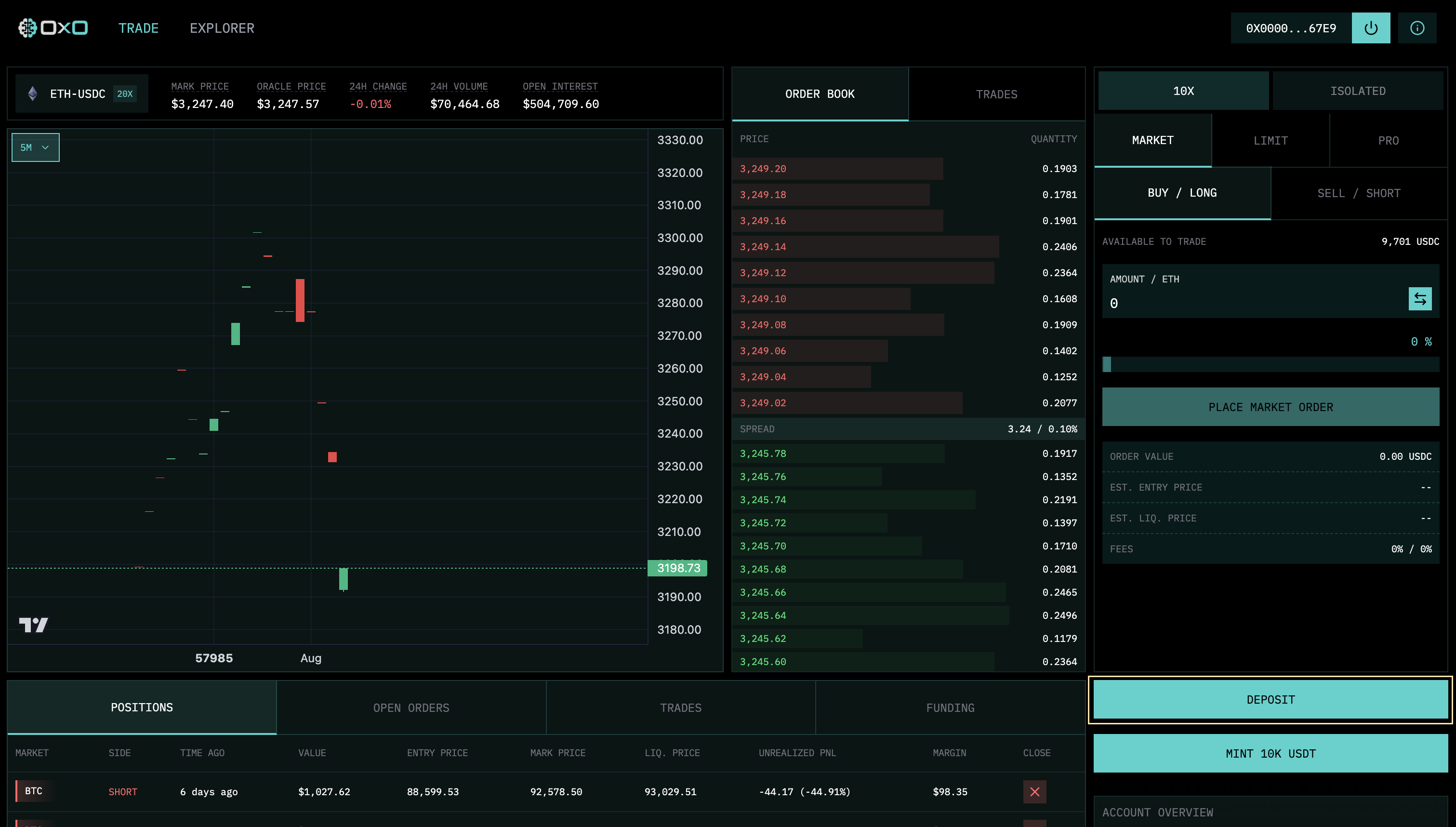
 2. **Initiate Deposit**: Click the "Deposit" button to open the funding modal.
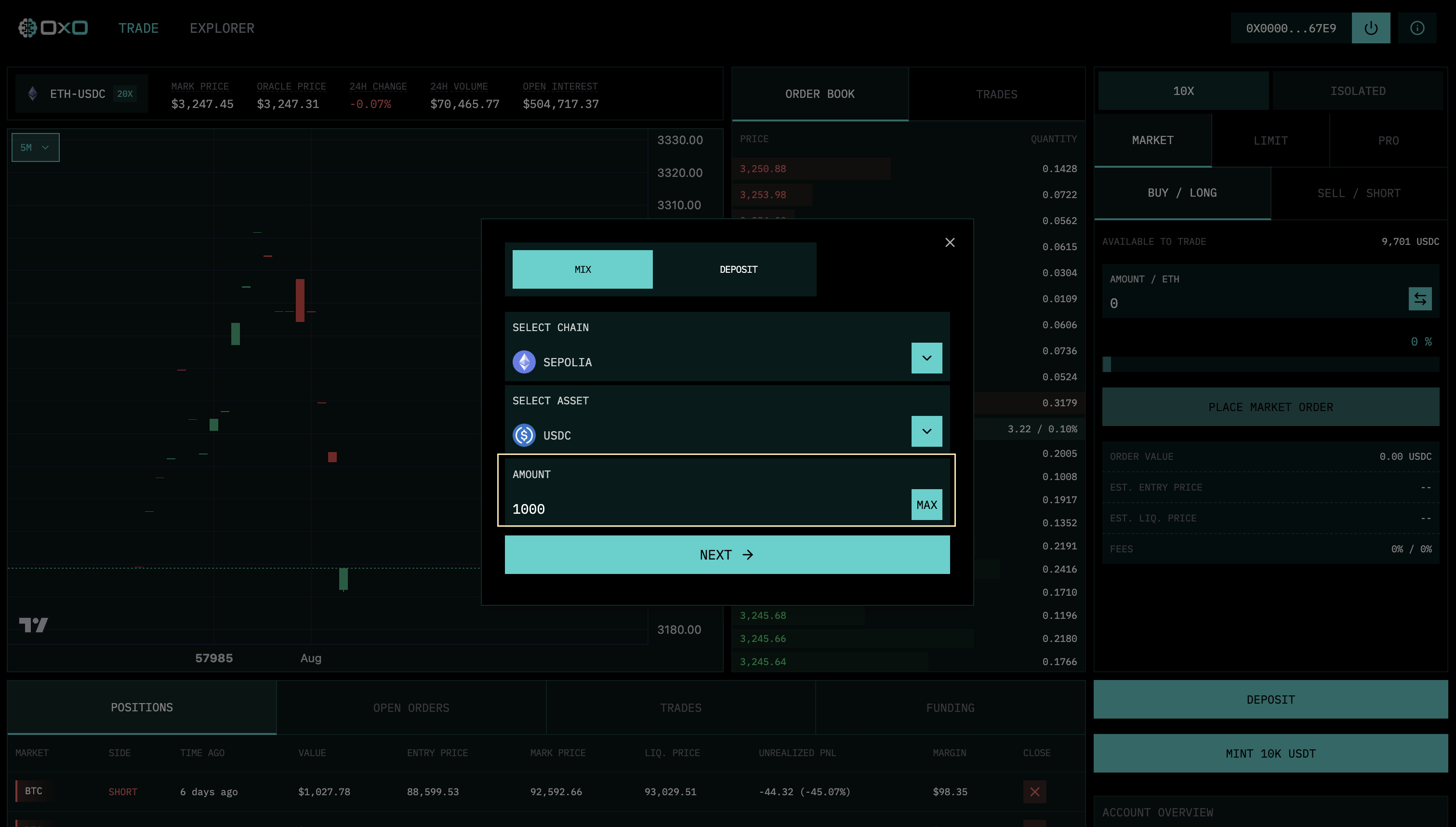
 3. **Enter Amount**: Input the amount of USDC you wish to deposit and click "Next".
 4. **Save Your Note**: The system will generate a cryptographic "Note". **You must save this**. It is your only claim to these funds.
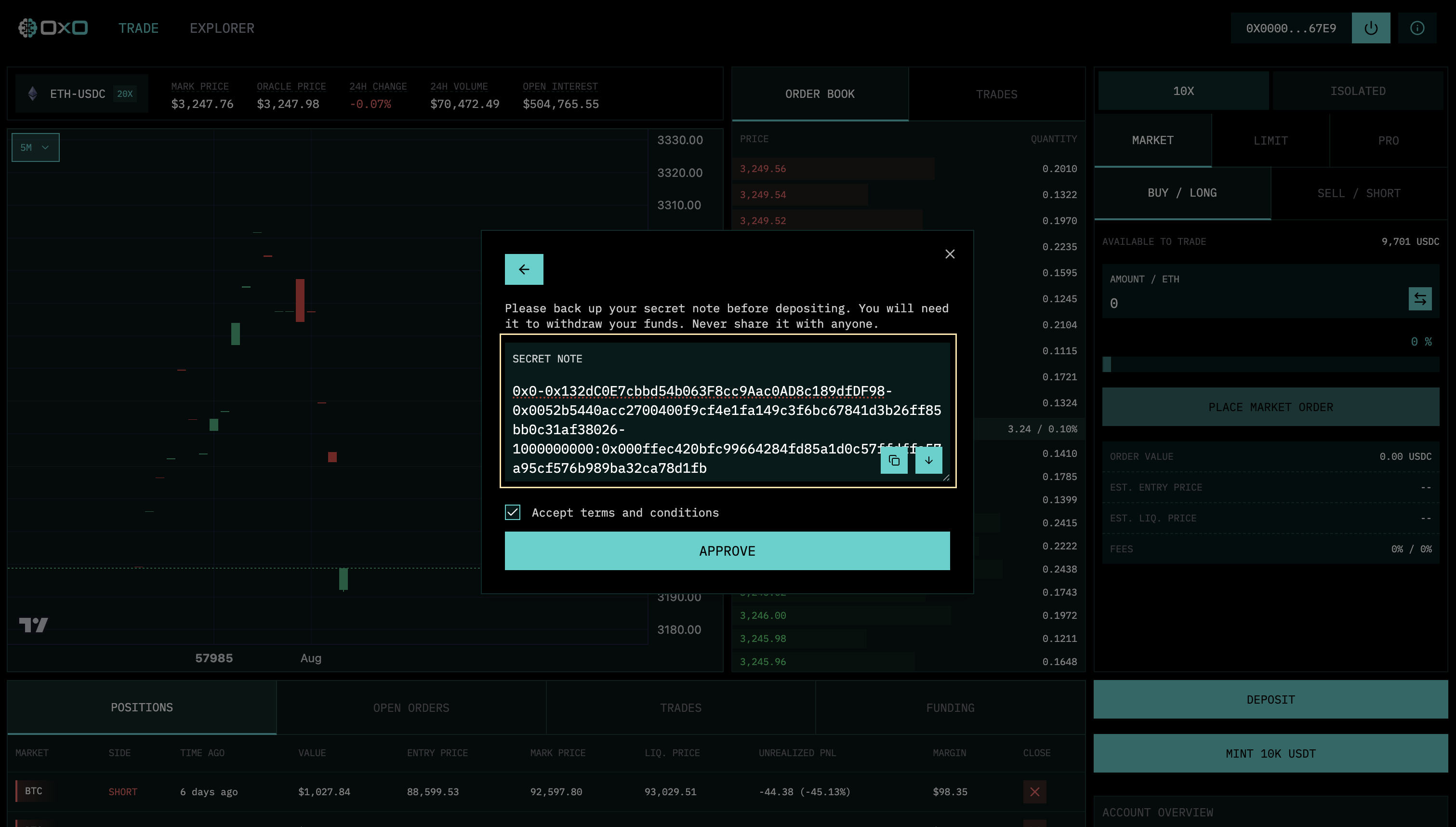 5. **Approve & Send**: Approve the token spend and confirm the transaction in your wallet.
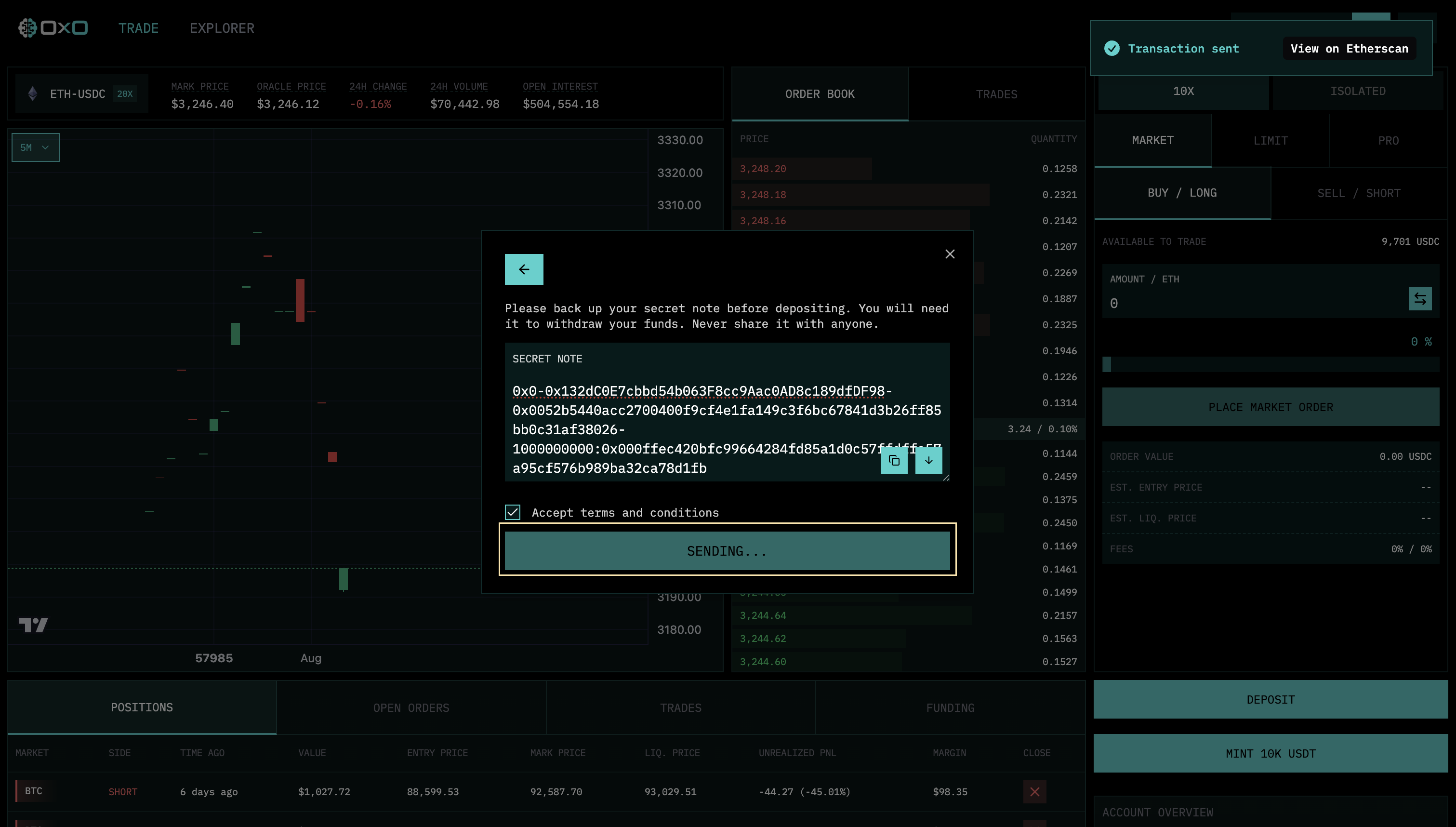 6. **Generate Proof**: After a brief wait for the mix, use your Note to generate the zero-knowledge proof required to fund your account.
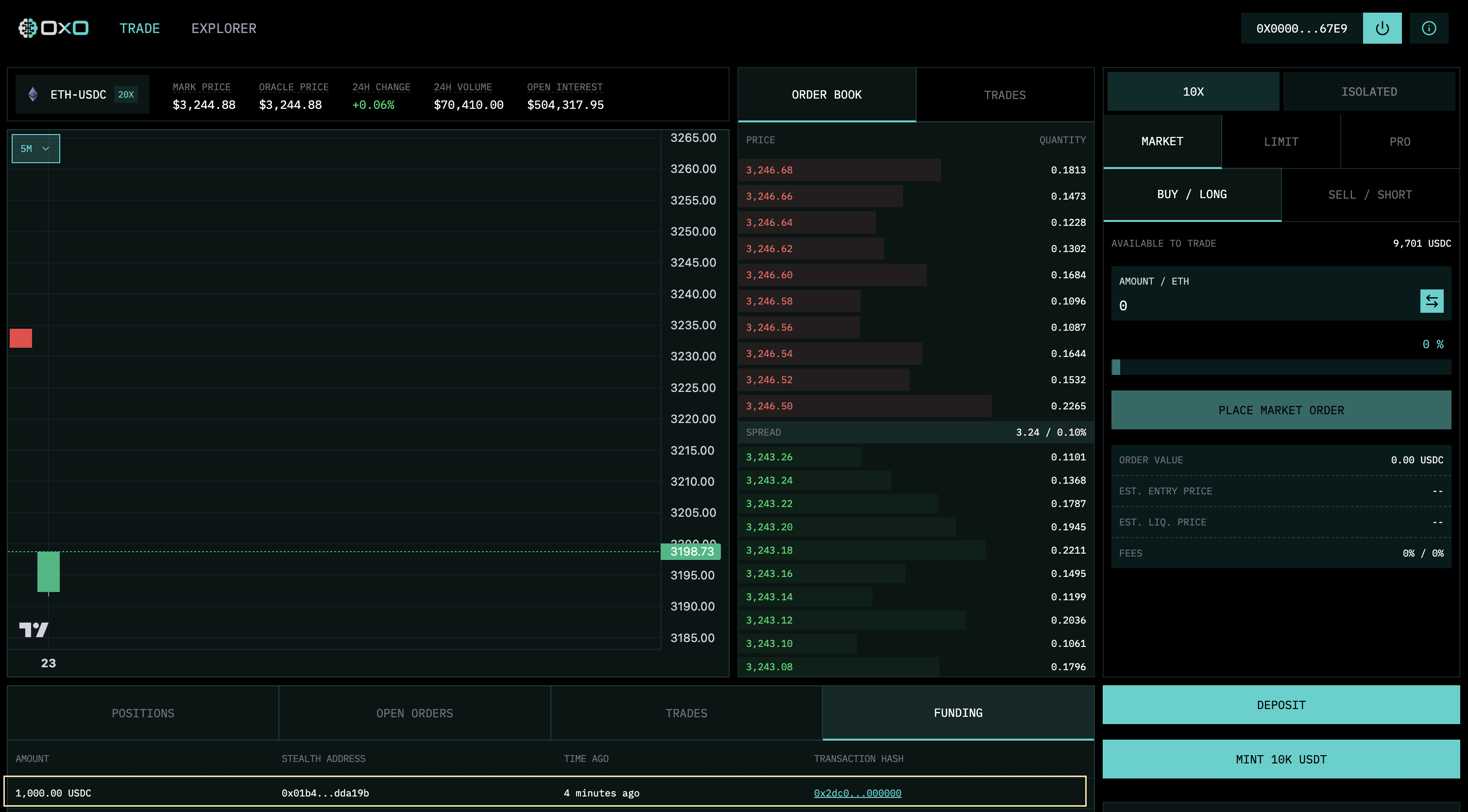
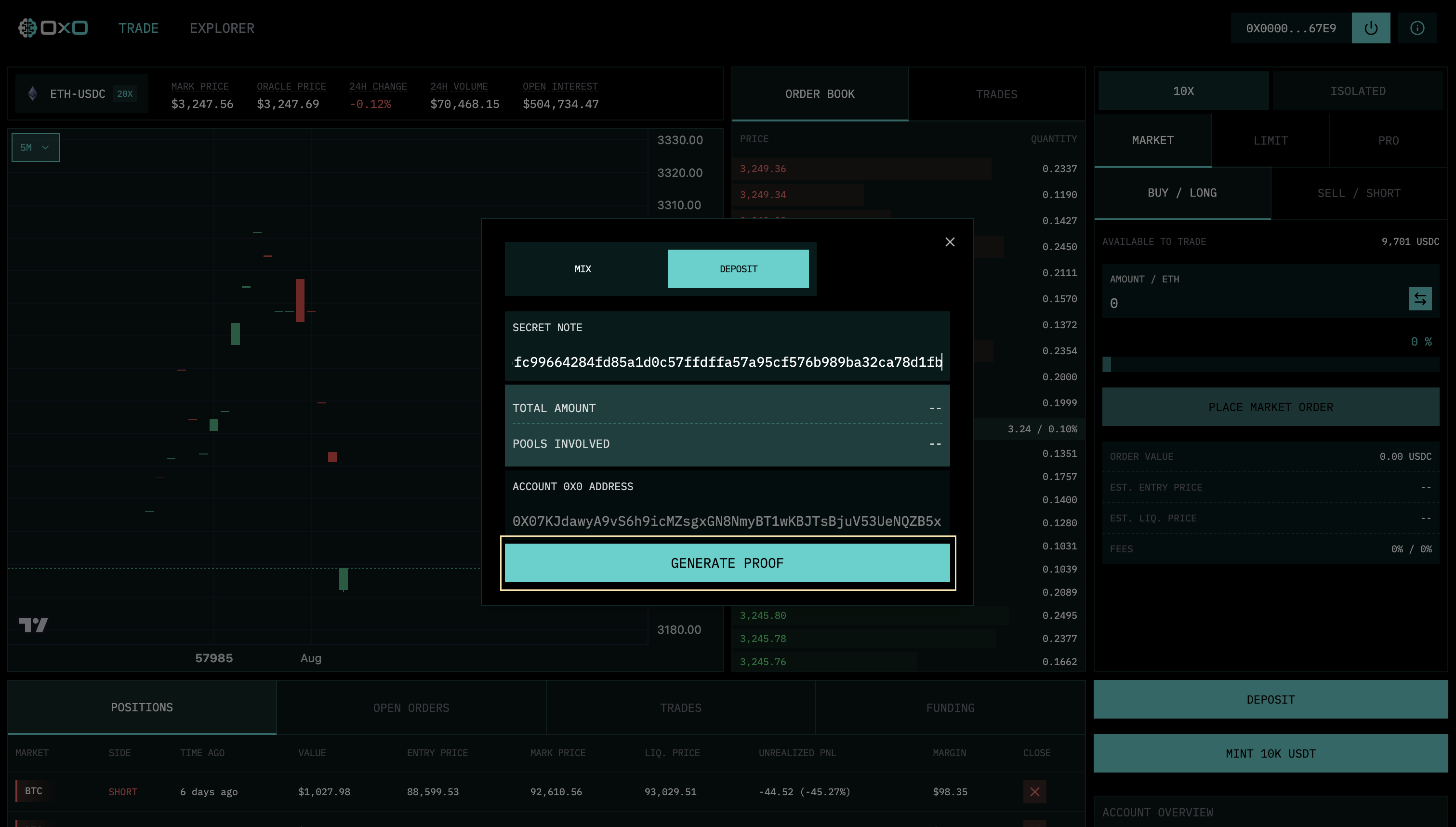 7. **Confirm Funding**: Once the proof is ready, click the final button to credit your exchange account.
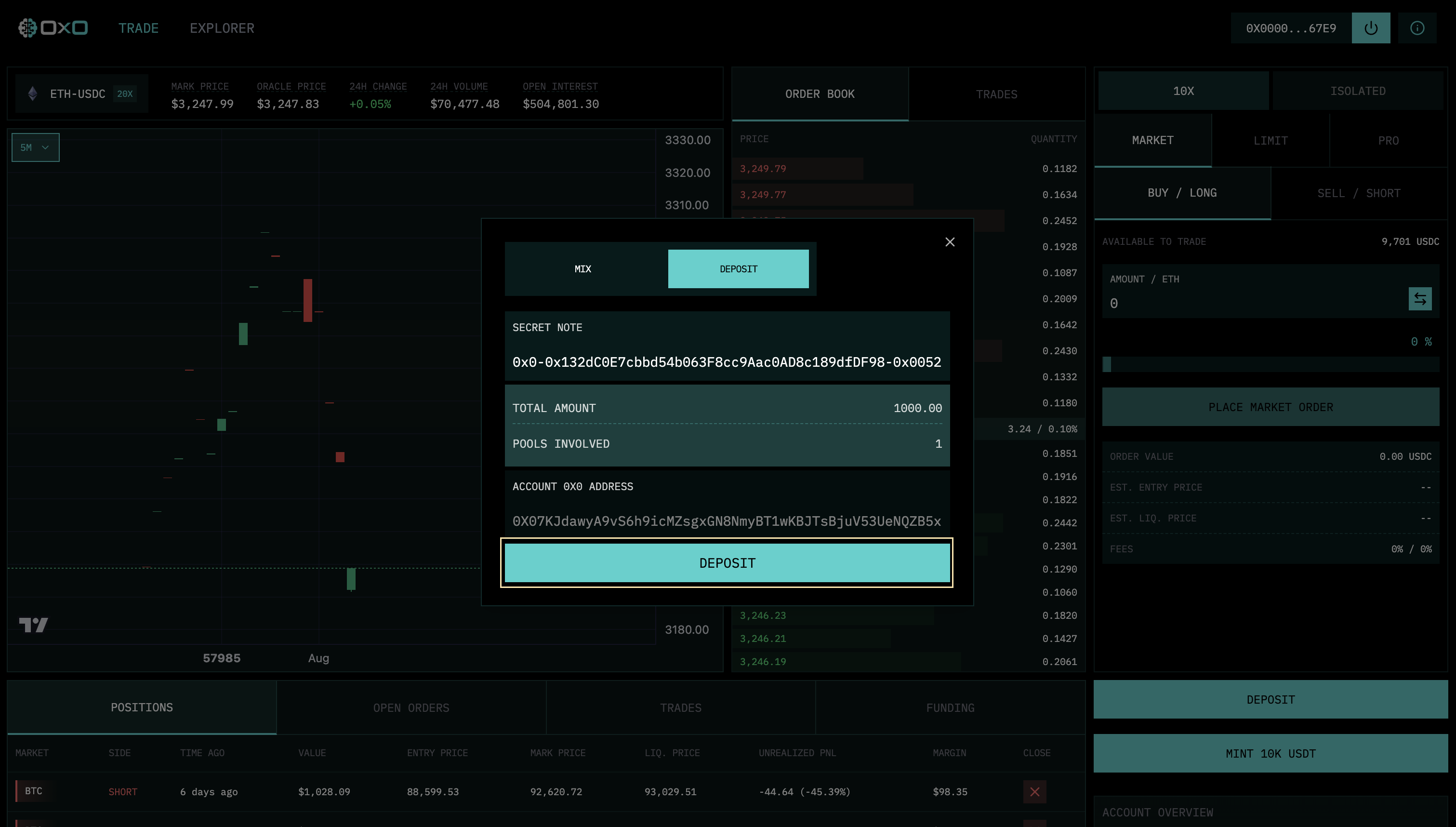 8. **Ready to Trade**: Within a few minutes, your funds will appear in your Available Margin.